
Hiding comments on Instagram means making negative or spam comments invisible to your audience without the commenter knowing. The fastest way: tap Hide under the comment on your own post. After that, only you and the commenter can see it (help.instagram.com/700284123459336, September 2026). Instagram also gives you Restrict, which hides a person’s future comments, Hidden Words, which auto-filters words you choose, bulk actions on up to 25 comments at once, and pinned comments that push positive replies to the top.
Three negative comments buried among hundreds of positive ones. But those are the ones new visitors see first. Podium’s review research found that 86% of people hesitate to buy from a business with negative online reviews (Podium, 2021). Comments aren’t reviews, but new visitors read them the same way.
You can’t control what people say. But you can control what stays visible. Instagram gives you multiple tools to hide, filter, restrict, and manage comments without the commenter ever knowing. This guide covers every method available as of September 2026, from native features to automation-powered moderation. For the full picture on safe automation, see our guide on how to avoid Instagram bans with DM automation.
Hidden Words filters message requests as well as comments, and filtered requests arrive with no notification. If DMs are going missing rather than comments, see where Instagram puts a missing message request.
Key Takeaways
- Hide button: Tap Hide under any comment on your own post. Only you and the commenter can see it, and the commenter isn’t told
- Restrict vs. Delete: Restricting hides a person’s new comments from everyone except them, with zero notification. Deleting removes a comment permanently and the commenter will notice
- Bulk actions: Select up to 25 comments at once, then hide, delete, or block the accounts behind them
- Hidden Words filter: “Hide unwanted comments” is on by default, and you can add your own words, phrases, numbers and emojis. The custom list matches words, not meaning
- Limit feature: Hides new comments and chats from non-followers and recent followers for up to four weeks at a time, during viral moments or coordinated attacks
- Pinned comments: Pin up to 3 comments to the top of any post to push negative content below the fold
- Bottom line: Combine native moderation tools (Restrict, Hidden Words, Limit) with comment-to-DM automation to filter negativity and convert positive comments into leads simultaneously

Why Hiding Comments Matters More Than Deleting Them
Your first instinct is to delete negative comments. Makes sense. The comment is gone. Problem solved.
Not quite. Deleting has side effects:
- The commenter knows. They’ll check back, see their comment is gone, and either repost it or escalate to DMs and Stories.
- You lose engagement signals. Every comment, even negative ones, counts toward your engagement rate. Deleting drops your numbers.
- It doesn’t stop the person. They can comment again immediately. You’re playing whack-a-mole.
Hiding is different. When you hide or restrict a comment, the commenter still sees their own comment. They think it’s visible to everyone. It’s not. Your audience never sees it. No confrontation. No escalation. No repeat behavior.
That’s why Instagram’s Restrict feature has become the go-to tool for creators dealing with persistent trolls and toxic followers.
Method 1: Delete or Hide Individual Comments
The most direct approach. Use this for one-off negative comments that don’t represent a pattern.
Hide a single comment
Instagram has a Hide button on comments under your own posts (help.instagram.com/700284123459336, September 2026):
- Open the Instagram app on iPhone or Android (this doesn’t work on the web)
- Go to the comment you want to hide
- Tap Hide under the comment
After that, the comment is visible only to you and the person who wrote it, and they won’t see that it’s been hidden. To bring it back, go to the post, tap View hidden comments at the bottom of the comment section, then tap Unhide.
Delete on iPhone (iOS)
- Open the post with the comment you want to remove
- Find the comment
- Swipe left on the comment
- Tap the trash icon to delete
- Alternatively, tap the ”!” icon to report it
Delete on Android
- Open the post with the comment
- Long press (tap and hold) on the comment
- Tap the trash icon to delete
- Or tap “Report” to flag it to Instagram
Bulk hide or delete (up to 25 at once)
Instagram lets you manage multiple comments at the same time (help.instagram.com/289376615404536, September 2026):
- Tap Comments below your post
- Tap Options in the top right, then tap Select multiple comments
- Select up to 25 comments
- At the bottom, choose Hide comments, Delete comments, or Block accounts
When to use this: Spam floods, coordinated attacks, or cleaning up after a post goes viral with mixed engagement.
The downside: Deletion is permanent. The commenter will notice their comment is gone. If they’re a persistent troll, they’ll likely come back.
Method 2: Use Instagram’s Hidden Words Filter
This is Instagram’s built-in auto-moderation tool. It has two parts. Hide unwanted comments automatically hides comments with common offensive words, phrases or emojis, and it is on by default. Custom words and phrases hides comments and message requests that contain words you choose (help.instagram.com/700284123459336, September 2026).
How to set it up
- Go to your Instagram profile and tap Menu (the three lines)
- Below How others can interact with you, tap Hidden Words
- Check that Hide unwanted comments is on. Newer app versions also show it under Comments, where you pick None, Some or More filtering
- Turn on Hide unwanted message requests if you want filtered requests sent to your spam folder (off by default)
- Tap Manage custom words and phrases
- Add your own words, phrases, numbers and emojis, separated by commas
Hidden comments still count toward your total comment count, and the person who wrote them won’t know they’re hidden.
What to add to your filter list
Build your filter list based on your niche and the type of negativity you receive:
Universal filters (works for most creators):
- Common insults and profanity
- “scam,” “fake,” “fraud,” “spam,” “bot”
- Competitor brand names (if people are astroturfing your posts)
- Contact/solicitation phrases: “DM me for,” “check my page,” “I made $”
Niche-specific examples:
| Niche | Filter Words |
|---|---|
| Fitness | ”steroids,” “natty,” “juice,” body-shaming terms |
| Beauty | ”ugly,” “catfish,” “filter,” product-bashing terms |
| Finance | ”pyramid,” “ponzi,” “get rich,” solicitation phrases |
| E-commerce | ”overpriced,” “ripoff,” “never received,” competitive spam |
| Coaching | ”guru,” “scam,” “waste of money,” trolling phrases |
Limitations of Hidden Words
Instagram’s filter is useful but imperfect:
- No context awareness. “This product is fire” and “This product is a dumpster fire” both contain “fire.” The filter can’t tell the difference.
- Easy to bypass. Trolls use misspellings (“sc@m”), spaces between letters (“s c a m”), or Unicode characters to evade keyword filters.
- Words, not meaning. Your custom list matches the words you add, not the intent behind them. “This is the worst purchase I’ve ever made” won’t get caught unless you’ve added “worst purchase” to your list.
For accounts getting consistent negative engagement from specific users, the Restrict feature (Method 3) is more effective than keyword filtering.
Method 3: Restrict an Account (The Stealth Option)
Restricting is the most powerful native moderation tool Instagram offers. It was built specifically for handling bullying and harassment without confrontation (about.instagram.com/blog/tips-and-tricks/restrict-mute-block-report-guide, September 2026).
What restricting does
When you restrict someone:
| Action | What Happens |
|---|---|
| Their comments | New comments are visible only to them. You can tap See comment, then Approve to show one, or delete it. |
| Their DMs | Your chat moves to Message Requests, and so do their future messages. You can read them without them knowing. |
| Their activity status | They can’t see when you’re online or when you’ve read their messages. |
| Your notifications | You stop getting notified about their future comments. |
| Notification to them | None. Instagram doesn’t tell them they’ve been restricted. |
(help.instagram.com/2638385956221960, September 2026)
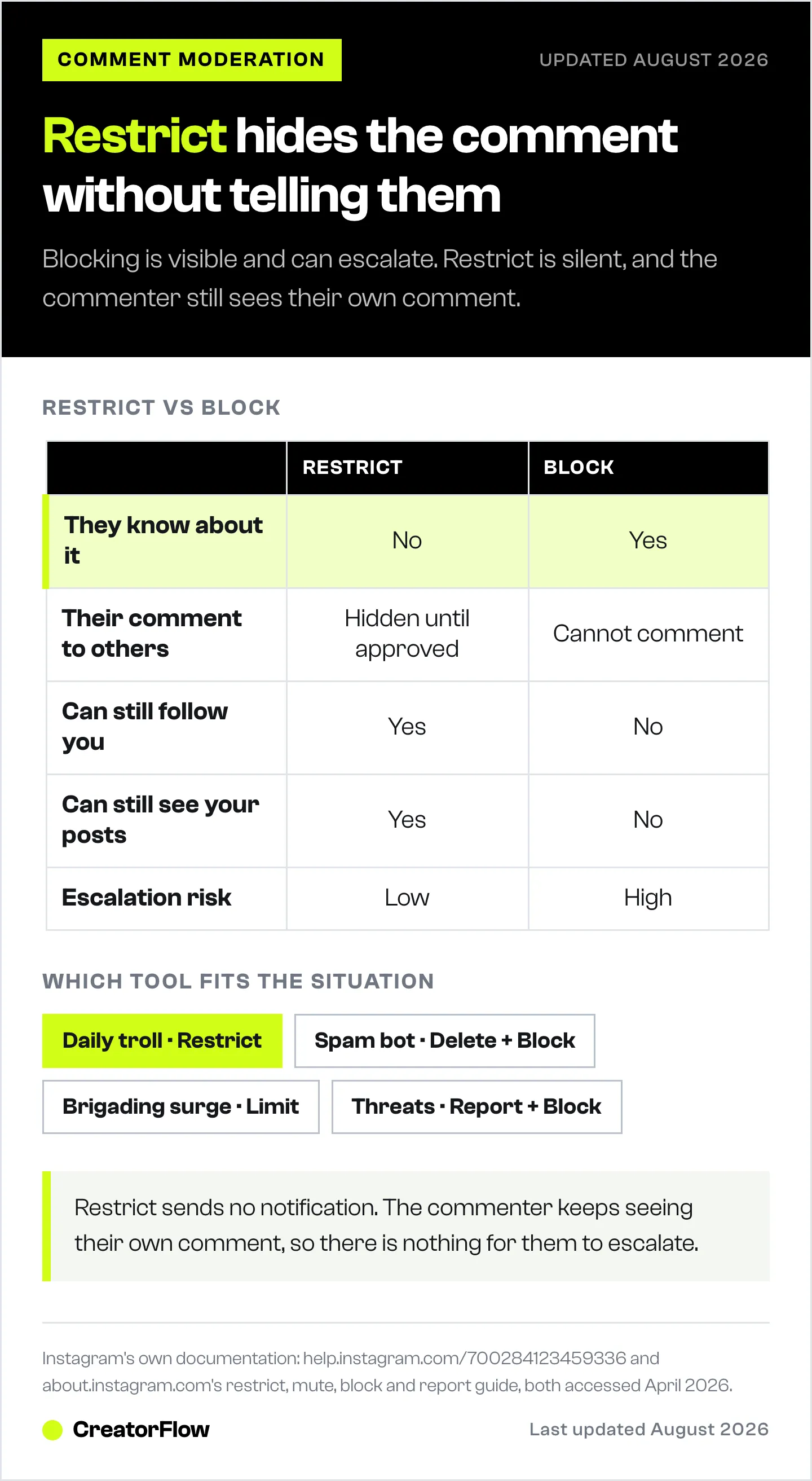
This is the key difference between Restrict and Block:
| Feature | Restrict | Block |
|---|---|---|
| They know about it | No | Yes (can’t find your profile) |
| Their comments visible to others | No (hidden until approved) | No (can’t comment at all) |
| They can still follow you | Yes | No |
| They can still see your content | Yes | No |
| You can undo it quietly | Yes, anytime | Yes, but they’ll notice |
| Escalation risk | Low | High (may create alt accounts) |
How to restrict someone
From their comment:
- Go to your post and tap Comments
- Tap and hold their comment
- Tap Restrict account
From their profile:
- Go to their profile
- Tap Options (the three dots) in the top right
- Select Restrict
From Settings:
- Go to your profile and tap Menu
- Below How others can interact with you, tap Restricted
- Tap Next, search for the username, and tap Restrict
When to use Restrict vs. Block vs. Delete
| Situation | Best Action | Why |
|---|---|---|
| Persistent troll leaving daily negative comments | Restrict | They’ll keep commenting thinking everyone sees it. You stop the damage without confrontation. |
| Spam bot posting promotional links | Delete + Block | Bots don’t check back. Blocking stops them permanently. |
| One-off rude comment from a real person | Delete | Single incident. Not worth restricting. |
| Competitor’s fans brigading your post | Restrict (repeat offenders) + Limit (temporary surge) | Restrict the ringleaders, Limit the overall flood. |
| Hate speech or threats | Report + Block | This needs Instagram’s moderation team, not your settings. |
Method 4: Limit Interactions (Temporary Shield)
The Limit feature is designed for short-term protection during high-traffic moments like viral posts, controversy, or coordinated attacks (help.instagram.com/4106887762741654, September 2026).
What Limit does
You choose who gets limited: accounts that don’t follow you, recent followers (accounts that followed you in the last week), or everyone except your Close Friends. For those accounts:
- New comments on your posts and reels are hidden unless you approve them
- New chats move to Hidden requests in your message requests
- They can’t reply to your Stories, tag or mention you, or remix your content
- Their hidden comments stay hidden even after you turn Limits off
How to enable it
- Go to your profile and tap Menu
- Below How others can interact with you, tap Limit interactions
- Tap What will be limited and pick Some interactions or Most interactions
- Tap Who will be limited and pick the groups
- Choose when Instagram should remind you to turn it off, then tap Turn on
You can keep Limits on for up to four weeks at a time and extend it as long as you need.
When to use Limit
- A Reel goes viral and attracts trolls from outside your audience
- You post something controversial and expect backlash
- You’re getting brigaded by another creator’s followers
- You’re dealing with a coordinated harassment campaign
Limit is temporary by design. It’s a shield, not a permanent strategy.
Method 5: Turn Off Comments Entirely
The most aggressive option. Use this when no other method is enough.
How to turn off comments on a specific post
- Open the post
- Tap Options (the three dots) above the post
- Select Turn off commenting
You can also turn it off before you share: tap Advanced settings, then Turn off commenting. Existing comments are hidden while commenting is off, and they come back when you turn it on again. To set this for your whole account, go to Settings > Comments, where you can choose who can comment or turn comments off for everyone.
How to turn off comments during Instagram Live
- Start your Live
- Tap Options at the bottom
- Select Turn off commenting
Note: Your Hidden Words filters also apply to comments on your Live, and a Live moderator can turn off commenting for one specific account (Instagram Help Center, September 2026).
When turning off comments makes sense
- Product announcements where you want to control the narrative
- Sensitive topics where comments would be counterproductive
- Posts that consistently attract spam or negativity
- Partnerships where the brand requires a clean comment section
The trade-off: Turning off comments removes an engagement signal, and with it every comment-triggered DM. It also gives new visitors nothing to read under the post, even if some of those comments would have been negative.
Method 6: Pin Positive Comments to the Top
You can’t always prevent negative comments. But you can control which comments appear first.
Instagram lets you pin up to 3 comments to the top of any post, the limit it set when pinning rolled out in 2020 (The Next Web, July 2020). Pinned comments appear before all others.
How to pin a comment
- Find the comment you want to pin
- Swipe left on the comment (help.instagram.com/320320152895514, September 2026)
- Tap the pin icon
- The comment moves to the top with a “Pinned” label
Strategic pinning
- Pin your own comment with a call-to-action (“Comment LINK to get the free guide”) and let a keyword-triggered DM do the delivering
- Pin a testimonial from a happy customer or client
- Pin a question that addresses common concerns (“Yes, this is safe. Here’s how the API works…”)
- Pin social proof from a verified account or industry figure
Three well-chosen pinned comments push negative content below the fold. Most users don’t scroll past the first 3-5 comments. For strategies that drive more positive comments worth pinning, read our guide on how to get more comments on Instagram.
Native Tools vs. Automation: What Instagram’s Built-In Features Can’t Do
Instagram’s moderation tools handle the basics. But they fall short for creators managing serious volume or facing persistent issues.
| Capability | Native Tools | Automation (e.g., CreatorFlow) |
|---|---|---|
| Auto-respond to comments | No | Yes (instant DM with link, offer, or booking page) |
| Keyword triggers on comments | Not available | Yes (a keyword sends the DM automatically) |
| Contact record for everyone who triggers a DM | No | Yes (contacts list, CSV export on Pro) |
| Convert comments to DM conversations | No | Yes |
| Respond within seconds (24/7) | No (manual only) | Yes |
| Capture emails from commenters | No | Yes (Email Gate on Pro) |
| Analytics on comment engagement | No (basic insights only) | Yes (link click tracking, clicks by country on Pro) |
The gap: Instagram’s tools are defensive. They hide or remove negative content. They do nothing to maximize positive comments, which is the job you hand to whichever Instagram chatbot fits your comment volume.
That’s where comment-to-DM automation changes the equation. Instead of only defending against bad comments, you turn good comments into conversations, leads, and sales.
The Smart Approach: Turn Comments Into Conversations
Hiding negative comments is defense. The offense is making every positive comment count.
Here’s how comment-to-DM automation works with CreatorFlow:
- Set a keyword trigger on your post (e.g., “LINK,” “INFO,” “PRICE”)
- Someone comments the keyword on your Reel or post
- CreatorFlow sends them an instant DM with your link, offer, or booking page
- The commenter gets a personalized response, usually within seconds
- You see who clicked the link, and you collect emails if you turn on Email Gate
This works through Meta’s official Instagram API. No password sharing, and minimal ban risk. CreatorFlow is a Meta Tech Provider (since December 2025).
Why this matters for comment moderation
When you combine native moderation (hiding negative comments) with automation (converting positive comments):
- Negative comments get filtered before your audience sees them
- Positive comments get rewarded with instant, personalized DMs
- More people comment because a keyword gets them a real answer in seconds, and comments are what you are trying to protect in the first place
- You stop managing comments manually and let systems handle both sides
CreatorFlow’s Free plan includes 500 DMs a month. Pro costs $15/month with 5,000 DMs. No per-contact pricing. Setup takes under 2 minutes. Compare it against other options in our best Instagram DM automation tools roundup.
What Happens When You Hide a Comment?
Common questions about the mechanics of hidden comments:
Does the commenter know their comment was hidden? No. When you use Hide, Restrict, Hidden Words, or Limit, the commenter still sees their own comment. It appears normally to them, and Instagram doesn’t tell them it’s hidden.
Can other people see hidden comments? No. Hidden comments are invisible to all users except the commenter and you (the account owner). You can find them by tapping View hidden comments at the bottom of the comment section.
Do hidden comments still count as engagement? Yes, in the comment count. Instagram’s help center says hidden comments “are still included in your total comment count” (help.instagram.com/700284123459336, September 2026). Deleted comments are removed entirely.
Can you unhide a comment? Yes. Go to the post, tap View hidden comments, then tap Unhide. For a restricted account’s comment, tap See comment, then Approve. For deleted comments, there’s no undo.
FAQ
Can you hide comments on Instagram Reels?
Yes. The Hide button, delete, Restrict, Hidden Words, Limit, and turning off comments all work on Reels and regular posts, and the process is the same. On Instagram Live you can turn off commenting, and your Hidden Words filters apply there too.
Does Instagram notify someone when you restrict their account?
No. Instagram does not send any notification when you restrict an account. The restricted person can still see your content, send you messages (which go to Message Requests), and leave comments (visible only to them). They have no way to know they’ve been restricted.
How many comments can you delete at once on Instagram?
You can delete up to 25 comments at once. Tap Comments below your post, tap Options, then Select multiple comments. Pick the comments and tap Delete comments, or Hide comments if you’d rather keep them out of sight (help.instagram.com/289376615404536, September 2026).
Can you hide comments on Instagram Live?
You can turn off all comments during a Live by tapping Options and then Turn off commenting. Your Hidden Words filters also apply to Live comments, and a Live moderator can turn off commenting for one specific account. Instagram’s help center doesn’t describe a Hide button for single comments during a Live.
What’s the difference between hiding and deleting a comment?
Deleting removes the comment permanently. Everyone (including the commenter) can see it’s gone. Hiding (with the Hide button, Restrict, or Hidden Words) keeps the comment visible to the commenter but invisible to everyone else. Hiding avoids confrontation and doesn’t alert the commenter.
Can someone tell if you’ve blocked them on Instagram?
Blocking is more noticeable than restricting. A blocked person can’t find your profile, posts, or Stories. If they search your username and get no results, they’ll likely figure it out. Restricting is invisible by design, which is why it’s preferred for managing negative commenters.
Do hidden comments affect my engagement rate?
Not much. Instagram’s help center says hidden comments “are still included in your total comment count,” so hiding a comment doesn’t lower the number people see. Deleting a comment removes it from the count.
How do I see all my restricted accounts?
Go to your profile, tap Menu, and below How others can interact with you tap Restricted. You’ll see every account you’ve restricted, and you can tap Unrestrict next to any of them (help.instagram.com/2638385956221960, September 2026).
Is hiding comments against Instagram’s rules?
No. Instagram built these moderation tools specifically for creators and businesses to manage their comment sections. Using Hide, Restrict, Limit, or Hidden Words is an intended feature, not a policy violation. Meta actively encourages comment moderation through their Help Center documentation (help.instagram.com/700284123459336, September 2026).


