
CreatorFlow Insights tracks every click on every link you send through DM automations. It shows which automations get the most clicks, and which countries and cities those clicks come from. You find it in Analytics > Overview > Performance tab. Link tracking starts automatically when you add a URL to any automation, with no extra setup required.
Most creators know how many DMs their automations send. Few know how many people click the link inside. That gap is the difference between sending messages and making sales. If your automation sent 200 DMs last week but only 10 people tapped the link, your message needs work. Without click data, you’d never know.
This guide walks through every section of CreatorFlow Insights: Link Performance, Geographic Distribution, Engagement Trends, and Content Performance. You’ll learn how to read each metric, what the numbers mean for your content strategy, and a 5-minute weekly routine that turns raw data into better results.
Key Takeaways
- Link tracking is automatic: Every URL added through the automation builder is tracked for clicks, CTR, country, and city with no extra setup
- CTR is your most useful metric: Click-through rate shows which DM messages convince people to tap your link, and which ones get ignored
- Geographic data shows engagement, not followers: Click distribution reflects active engagement, not passive followers who never interact
- Engagement Trends reveal timing: Hourly DMs Sent and Hourly Link Clicks charts show when your audience is active, so you can post at the right time
- Content Performance closes the loop: See which posts trigger the most automations and compare trigger rates to find your highest-converting content format
- 5-minute weekly check: Review all four sections once a week to spot underperforming automations, new audience markets, and optimal posting windows
What CreatorFlow Insights Tracks
CreatorFlow Insights lives under Analytics > Overview > Performance. It has four core sections that work together to give you a complete picture of your DM automation performance.
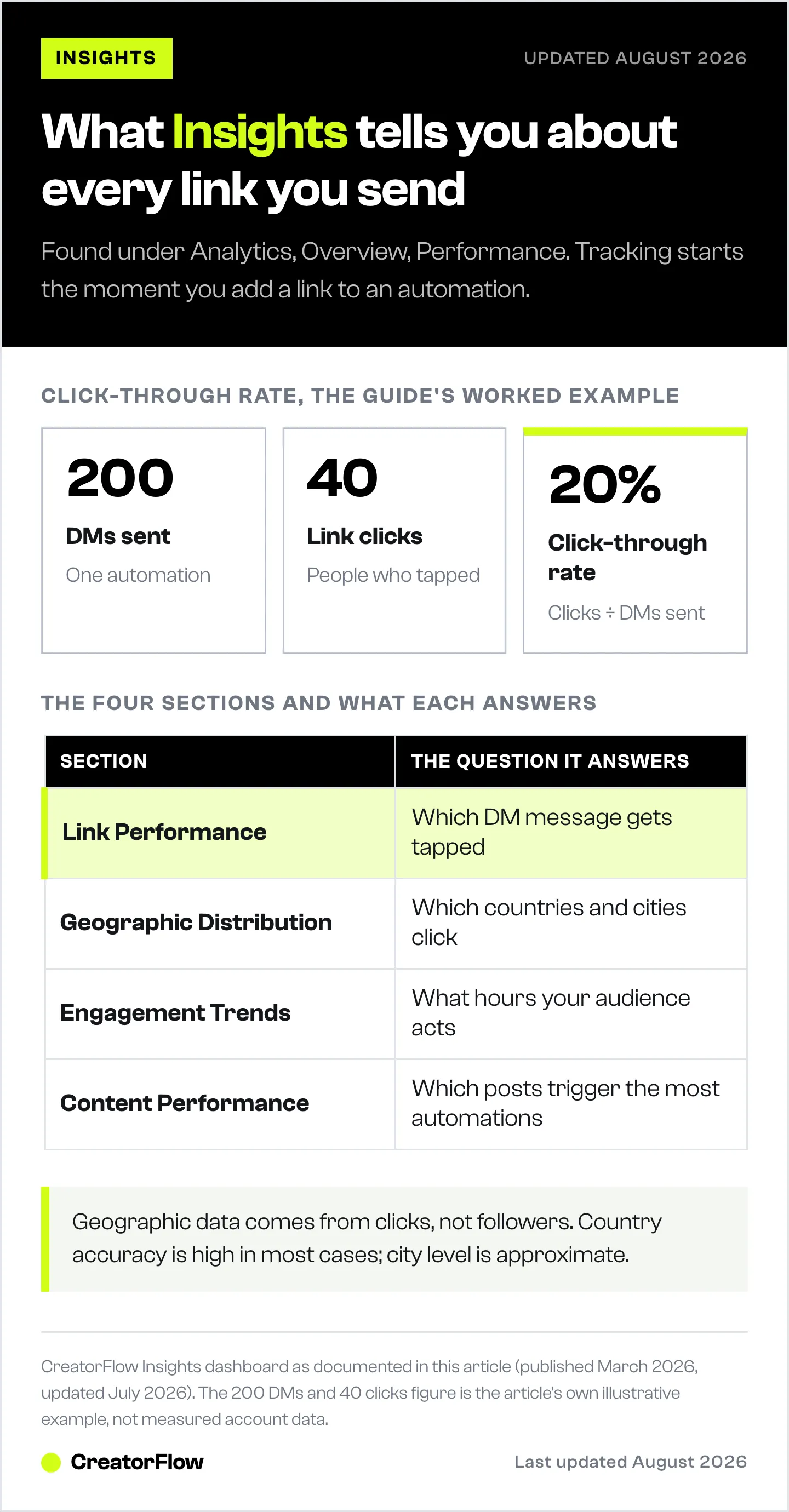
| Section | What It Shows | Why It Matters |
|---|---|---|
| Link Performance | Click-through rate (CTR) per automation | Tells you which DM messages get people to tap your link |
| Geographic Distribution | Clicks broken down by country and city | Tells you where your buyers are, not where your followers are |
| Engagement Trends | Hourly and daily DM sends and link clicks | Shows when your audience is most active |
| Content Performance | Trigger rate per post or Reel | Reveals which content format drives the most automations |
All four sections update in real time as your automations run.
How to Find Insights in CreatorFlow
- Open CreatorFlow and click Analytics in the left sidebar
- You land on the Overview tab by default
- The Performance tab shows three metric cards at the top: DMs Sent, Link Clicks, Leads Collected
- Scroll down to see Automation Performance, Content Performance, Engagement Trends, and Geographic Distribution
No setup required. If your automations include links, CreatorFlow tracks clicks automatically.

Link Performance: Which DMs Get Clicks
What CTR Means for DM Automations
Click-through rate (CTR) measures how many people clicked your link out of everyone who received your DM.
Formula: CTR = (Link Clicks / DMs Sent) x 100
Example: Your automation sent 200 DMs. 40 people clicked the link. Your CTR is 20%.
CTR is the single most useful metric for DM automations. A high send count with a low CTR means your message isn’t convincing people to tap. A low send count with a high CTR means the message works but you need more triggering content.
How to Read the Automation Performance Table
The Automation Performance section lists each automation with:
- Automation name (what you named it)
- DMs sent (total messages delivered)
- Link clicks (how many tapped your link)
- CTR percentage (calculated automatically)
- Link count badge (how many links the automation contains)
Click any automation row to expand it and see detailed stats.
What Your CTR Tells You
CTR varies based on your niche, audience, and DM copy. Since every creator’s audience is different, the most useful comparison is your automations against each other.
If you have three automations and one has a 35% CTR while the others sit at 12%, the 35% automation has a better message. Study what’s different about it.
| DM Style | Typical Result |
|---|---|
| ”Here you go! [LINK]“ | Lower CTR. No context about what the link leads to |
| ”Here’s the product from my reel. Discount code inside: [LINK]“ | Higher CTR. Tells the reader what they get |
| ”Your free guide is ready! Let me know what you think: [LINK]“ | Higher CTR. Creates anticipation and adds a personal touch |
The difference is one sentence of context before the link. People tap links when they know what’s behind them. For more message templates that drive clicks, check our DM scripts that convert.
How to Improve a Low-Performing Automation
If one automation’s CTR is lower than the rest:
- Open the automation and read the DM message
- Check if the message explains what the link leads to. “Here you go” doesn’t tell people anything. “Here’s the discount code for the jacket from my reel” gives a reason to tap
- Edit the message to add one line of context before the link
- Monitor the CTR over the next 50-100 DMs to see if it improves
You don’t need to delete and recreate the automation. Edit the DM text and save. For a deeper guide on optimizing DM messages, see our automation templates.
Geographic Distribution: Where Your Buyers Are
What Geographic Distribution Shows
The Geographic Distribution section shows where your link clicks come from, broken down by:
- Top Countries (bar chart showing click volume per country)
- Top Cities (table with rank, city name, country, click count, and percentage of total)
Toggle between Countries and Cities using the tabs above the chart.
This data comes from link clicks, not follower location. Instagram doesn’t share where your followers live. CreatorFlow tracks where link clicks originate, which is more useful: these are people who took action, not passive followers.
Why Audience Location Data Matters
Knowing where your clicks come from changes how you create content.
Language decisions. If 60% of your clicks come from Brazil, a Portuguese caption on your next post will feel personal to your biggest audience. A bilingual approach (English + Portuguese) covers both markets without alienating either.
Posting time optimization. If your clicks come from three different time zones, posting at a single time means two-thirds of your active audience sees your content hours late. Check Engagement Trends alongside geographic data to find the best posting window.
Content localization. A fitness coach getting clicks from India, Brazil, and the US has three different markets with different purchasing power, cultural references, and product preferences. Knowing this shapes what you sell and how you price it.
Local business insight. If all your clicks come from your own city, you have a local audience. Selling digital products internationally? You might need to diversify your content to attract broader reach. Selling local services? Your content strategy is already working.
How to Act on Geographic Data
| What You See | What It Means | What to Do |
|---|---|---|
| One country dominates (60%+) | Your content resonates with that market | Try a caption in their language. Test posting at their peak hours |
| All clicks from your city | You have a local audience | Great for local business. For online sales, post at varied hours to reach other time zones |
| Clicks from unexpected countries | Untapped demand you didn’t know about | Find which content brought them in. Create more like it |
| Clicks spread evenly across 5+ countries | Broad international appeal | Use English as base language. Avoid culture-specific references that exclude |
| Zero clicks from your target market | Your content isn’t reaching the right people | Revisit hashtags, posting times, and caption language for that market |
Geographic Data and Content Performance Together
CreatorFlow also tracks Content Performance in the same Analytics section. This shows which posts and Reels trigger the most automations (Trigger Rate).
Combine both data points:
- Find your highest-CTR automation (Link Performance)
- Check which post triggered the most comments for that automation (Content Performance)
- Check where those clicks came from (Geographic Distribution)
Now you know: which post, which message, and which audience worked best together. Replicate that combination.
Engagement Trends: When Your Audience Is Active
The Engagement Trends section sits between Content Performance and Geographic Distribution. It shows two charts:
- Hourly DMs Sent (when automations fire most)
- Hourly Link Clicks (when people tap links)
Toggle between Hourly and Daily views.
The peak hours tell you when your audience is most active on Instagram. If DMs spike at 8 PM but link clicks peak at 10 AM the next day, your audience reads DMs later. Adjust your posting schedule so automations fire when people are ready to click.
This data pairs with geographic distribution. If most clicks come from Spain but you post at 3 PM EST, your Spanish audience sees the content at 9 PM their time. Shift your posting window to catch them earlier in the day when engagement is highest.
Content Performance: Which Posts Drive Automations
The Content Performance section shows each post with:
- Total Comments (all comments on the post)
- Keyword Comments (comments matching your automation keyword)
- Trigger Rate (percentage of comments that triggered an automation)
A post with 200 comments but a 5% Trigger Rate means your keyword isn’t matching what people type. Either change the keyword to match natural language, or use the “Any word” trigger to capture all comments. For keyword setup best practices, see our keyword trigger automation guide.
A post with 20 comments and 90% Trigger Rate is a high-converting piece of content. Study its format, hook, and CTA. Create more posts with the same structure. Our guide on content hooks and templates covers the formats that drive the most engagement.
Putting It All Together: A Weekly Insights Routine
Check your Insights once a week. Five minutes gives you enough data to make better content decisions.
Weekly check (5 minutes):
- Open Analytics > Overview > Performance
- Check the three metric cards: DMs Sent, Link Clicks, Leads Collected. Are they trending up or down?
- Scroll to Automation Performance. Compare CTRs. Is any automation underperforming? Edit its DM message
- Check Content Performance. Which post had the highest Trigger Rate? Plan similar content
- Check Geographic Distribution. Any new countries showing up? Consider posting at their peak hours
- Check Engagement Trends. When do most clicks happen? Schedule posts to align with that window
This routine takes less time than editing a single Instagram caption. The data compounds: each adjustment improves the next week’s results.
No Data Yet? Start Here
If your Insights screen is empty, it means your automations haven’t sent enough DMs with links yet.
- Create an automation with a link in the DM message. Go to Automations > New Automation, or pick a template from the Templates page
- Post content with a clear call-to-action. Example: “Comment LINK to get the free guide”
- Wait for comments. Each comment triggers a DM. Each DM click creates a data point in Insights
- Check back after 20-30 DMs. That’s enough for meaningful CTR data and initial geographic patterns
Even 10 clicks show you something useful. Geographic data starts making sense at 50+ clicks across multiple posts.
FAQ
How does CreatorFlow track link clicks?
CreatorFlow wraps links in your DM messages with tracking. When someone taps the link, CreatorFlow records the click and redirects to your original URL. Click data is aggregated by country and city in your analytics dashboard. This happens instantly. The person lands on your page with no delay.
Does link tracking work with all URLs?
Yes. Any URL you add through the ”+ Add Link” button in the automation builder is tracked automatically. This includes affiliate links, product pages, booking links, download links, and any other URL.
Can I see who clicked my link?
CreatorFlow shows click data at the automation level (total clicks, CTR) and geographic level (country, city). The Activity Log tab shows your last 50 DM interactions with usernames and timestamps so you can see which conversations are active.
How accurate is the geographic data?
Geographic data is derived from aggregate click metadata. Country-level accuracy is high in most cases. City-level data is approximate and may show the nearest major city rather than the exact location.
Is the geographic data about my followers or my buyers?
It reflects link click engagement, not your follower base. This is more valuable: followers are passive, link clicks signal active interest. Engagement from a specific region represents warmer demand than a follower count from the same area that never converts.
What’s a good CTR for Instagram DM automations?
There’s no universal benchmark because CTR depends on your niche, audience relationship, and what you’re linking to. Instead of comparing to external benchmarks, compare your automations against each other. Your lowest-CTR automation is the one to improve first.
Can I track clicks from Story automations too?
Yes. Story Reply automations with links are tracked the same way as Comment-to-DM automations. CTR, country, and city data all appear in Insights.
How often does the data update?
Insights data updates in real time. When someone clicks a link, it appears in your analytics within seconds. The charts and counters refresh each time you open the page.
Does tracking affect my link or slow it down?
No. The redirect happens in milliseconds. The person clicking your link won’t notice any difference. Your destination page loads at its normal speed.
Can I export my analytics data?
You can export your contacts, including source tracking, via CSV from the Contacts page, which is what most creators need to move leads into an email platform. Click, geographic, content-performance, and engagement data all live in the CreatorFlow dashboard.
What’s the difference between DMs Sent on the Dashboard vs Analytics?
The Dashboard shows “Performance Snapshot (Last 7 days)” with four cards: DMs Sent, Link Clicks, Leads Collected, Total Followers. Analytics shows the same first three metrics but adds per-automation breakdowns, geographic data, content performance, and engagement trends. Analytics is the detailed view.
I have automations but no link clicks. Why?
Three common reasons: (1) Your DM message doesn’t include a link. Check the automation builder and make sure you added a link with the ”+ Add Link” button. (2) Your DM message doesn’t give people a reason to click. Add context about what’s behind the link. (3) Your audience isn’t ready to buy. This is normal for new automations. Focus on improving DM copy first.


