

A proper Instagram Business account setup goes beyond switching account type. After conversion, configure your category, name and bio, contact buttons (email, phone, directions), one action button (Book Now, Reserve, Order Food), link a Facebook Page, open the Professional Dashboard, set up Shopping if eligible, optimize the bio link, and connect DM automation through Meta’s Graph API. None of these are optional if you want the profile to convert.
You hit “Switch to Business” and Instagram dropped you back on your feed like nothing happened. No checklist. No “here’s what to do next.” Most creators stop there, then wonder six months later why their Business profile still looks identical to their personal one and converts at the same rate.
This guide is the post-switch checklist. You already made the call between Creator and Business accounts. Now we configure it so the account actually does its job: turning profile visits into emails, bookings, sales, or follows.
Key Takeaways
- Switching is step 0: Picking “Business” in settings turns on features but configures nothing. The 12 steps below are what convert a profile into a lead engine.
- Action buttons are limited but powerful: Instagram supports Book Now, Reserve, and Order Food via verified partners like OpenTable, Resy, SevenRooms, and Fandango (help.instagram.com, May 2026). Pick one that matches your offer.
- A Facebook Page is required for most features: Shopping, lead forms, and most ads need a linked Facebook Page. Set this up first or half the dashboard stays grey.
- Shopping has strict rules: Products must require physical shipping and link to specific product pages on your owned domain. Digital goods and third-party links are ineligible (facebook.com/business/help, May 2026).
- DM automation works on Business or Creator: Meta’s Graph API requires a Professional account, but does not care which type (developers.facebook.com, May 2026). Both give you the same automation features.
- The reach drop is a myth: Adam Mosseri has confirmed account type does not affect ranking. Reach drops correlate with promotional content, not the Business label (socialmediatoday.com, May 2026).
- Bottom line: Spend 30 minutes on this checklist once. The profile then runs without you for the next year.

Instagram Business Account Setup in 30 Minutes
Switch first: Settings, then Account type and tools, then Switch to professional account, then Business. The switch is instant, free, and reversible, and you keep every follower and post. Configuration is the part that decides whether the profile converts. Set your category, rewrite the Name field and bio for search, add contact buttons and one action button, link a Facebook Page, then connect DM automation. Budget 30 minutes for the full list below.
Before You Start: Confirm You’re On a Professional Account
Open Instagram, tap your profile, then “Edit profile.” If you see “Category” and “Contact options” near the top, you’re on a Professional account. If not, you’re still on Personal.
To switch: Settings > Account type and tools > Switch account type > Switch to professional account > Business.
Switching is instant, free, reversible, and you keep every follower, post, and DM thread. It does not “reset” anything, despite the rumors.
If you’re still deciding between Creator and Business, the Creator vs Business comparison breaks down the feature differences. Most service businesses, e-commerce stores, and local businesses want Business. Solo influencers and content creators usually want Creator.
Step 1: Pick the Right Category
Instagram requires a category at setup, but most people pick the first one that sounds close and never look at it again. The category appears under your name on your profile and tells Instagram who you serve, which influences who sees your content in Explore.
How to set it: Edit profile > Category > search by keyword.
Instagram offers over 150 sub-categories (per the in-app search results, May 2026). Pick the most specific match. “Coach” is generic. “Personal Trainer,” “Business Consultant,” or “Life Coach” is sharper. If nothing fits, type a free-text search and Instagram will suggest the closest official category.
You can hide the category from your public profile if you do not want it visible. Edit profile > Profile display > toggle “Display category label” off. Hiding it does not change the algorithmic effect.
Step 2: Optimize Your Name and Bio
These two fields are your only on-profile SEO. Treat them like a Google title tag.
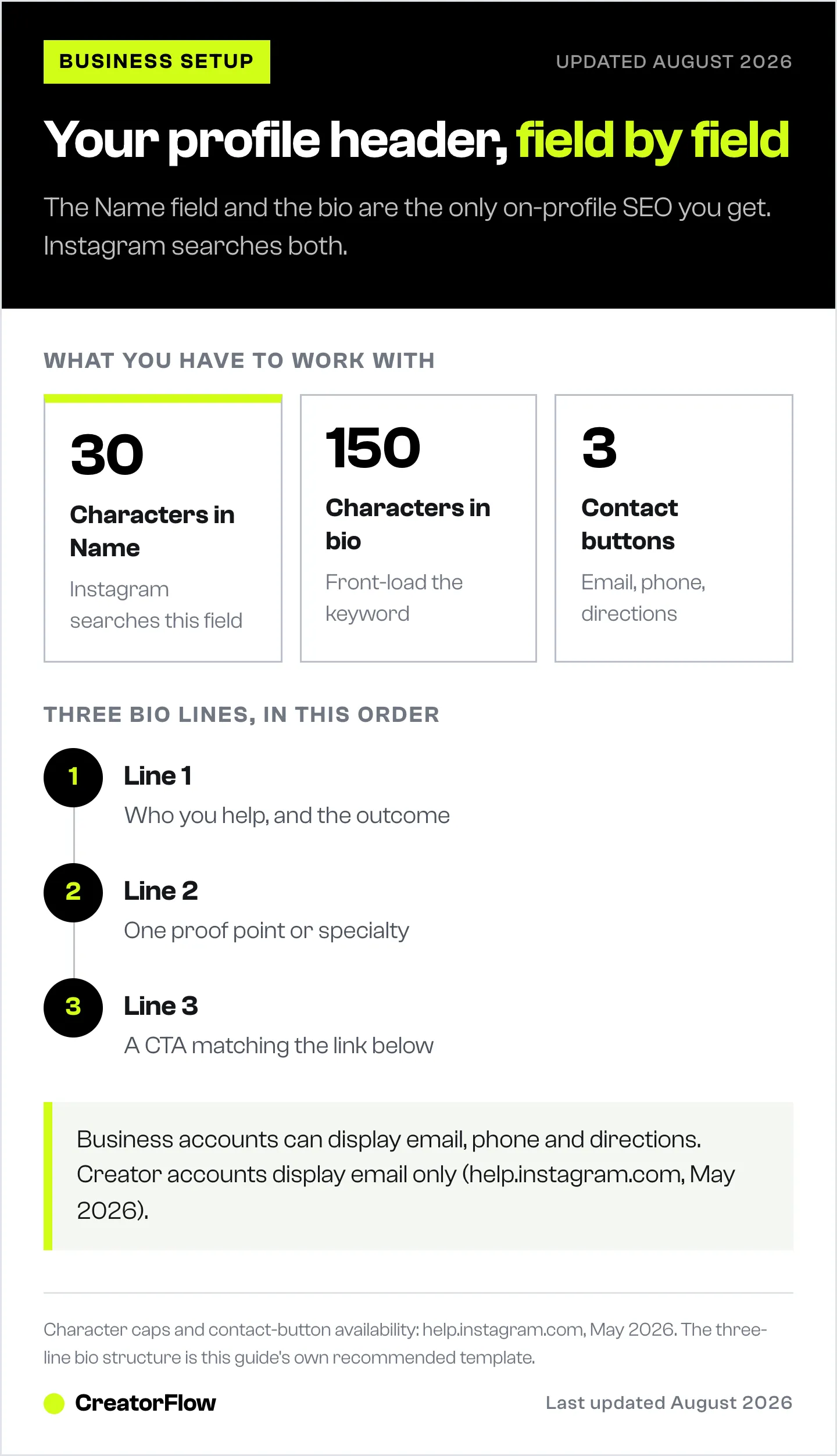
Name (30 characters): Not your handle. The bold text under your photo. Instagram searches this field. Use your real name plus your role or niche, separated by a pipe or bullet. “Sarah Chen | Pilates Coach” beats “Sarah Chen” because someone searching “pilates coach” can actually find you.
Bio (150 characters): Three lines that say who you serve, what you do, and what to do next. The bio is searchable inside Instagram (verified May 2026 via in-app search). Front-load the keyword someone would use to find you. Cut every adjective. End with a CTA tied to the link below.
Example structure:
- Line 1: Who you help (target audience + outcome)
- Line 2: What makes you different (one specific proof point or specialty)
- Line 3: CTA pointing to the link below
Skip emojis if you serve a B2B audience. Use one or two if you serve consumers. Never stack five in a row.
For deeper bio mechanics, see the bio link versus DM automation breakdown.
Step 3: Add Contact Buttons (Email, Phone, Directions)
This is the single biggest reason to be on Business instead of Creator. Business accounts can display all three contact buttons publicly. Creator accounts can only display email (help.instagram.com, May 2026).
How to set them: Edit profile > Contact options > add Business email, Business phone number, and Business address.
Each one becomes a tappable button under your bio. Address opens Apple or Google Maps. Phone triggers a call. Email opens the user’s default mail app.
Trade-off to know: Adding a phone number or address makes them publicly visible. Local businesses and service providers should add them. Solo creators working from home usually skip the address.
Step 4: Add One Action Button
Action buttons sit next to contact buttons and are where actual conversion happens. As of May 2026, Instagram supports three action button types: Book Now, Reserve, and Order Food (help.instagram.com, May 2026).
The verified third-party partners:
| Action | Verified Partners (May 2026) |
|---|---|
| Reserve | OpenTable, Resy, SevenRooms, TheFork, Eat App |
| Book Now | Various scheduling partners (varies by region) |
| Order Food | DoorDash, Uber Eats, partner availability varies |
| Tickets | Fandango |
Source: help.instagram.com/313280685976255 (May 2026). Partner availability varies by country.
How to set: Edit profile > Action buttons > select button type > pick a partner > authorize the integration.
Pick one. Picking three confuses visitors. The button you choose should match the single outcome a profile visitor is most likely to want. A coach picks Book Now. A restaurant picks Reserve. A ghost kitchen picks Order Food.
Step 5: Link Your Facebook Page
Half of the Business features go grey until you do this. Shopping, lead forms, ads with full audience targeting, and cross-posting all need a connected Facebook Page (help.instagram.com, May 2026).
How to link: Settings > Accounts Center > Connect accounts > add Facebook account > select a Page (or create a new one if none exists).
You do not have to actively post on the Facebook Page. It just needs to exist and be linked. Most creators create a minimum-viable Page with a logo, cover photo, and one welcome post, then ignore it.
If you skip this step, Instagram quietly disables features without telling you which ones. Connect the Page even if you have no plan to use Facebook.
Step 6: Open the Professional Dashboard and Set Two Goals
The Professional Dashboard is the analytics command center for Business and Creator accounts. It tracks accounts reached, accounts engaged, follower growth, content performance, and the new Competitive Insights feature that lets you track up to 10 competitor accounts (help.instagram.com, May 2026).
How to open it: Profile > “Professional dashboard” button under your bio.
What to do during setup:
- Pick two metrics you will check weekly. Most creators should track “Accounts engaged” and “Sends per reach.” Sends are weighted 3-5x higher than likes in Instagram’s 2026 ranking signals (Mosseri statements, buffer.com, May 2026).
- Add three competitors to Competitive Insights. Use direct competitors, not aspirational ones at 10x your size.
Full walkthrough in the Professional Dashboard guide.
Instagram only retains analytics for 90 days, and Story metrics disappear after 14 days. Screenshot your numbers monthly or export them.
Step 7: Set Up Instagram Shopping (If You Sell Products)
Skip this step if you do not sell physical products. Read it carefully if you do, because the eligibility rules trip up most first-timers.
Required for approval (May 2026):
- Business or Creator account (Business preferred)
- Linked Facebook Page (Step 5)
- Account in a supported country
- Compliance with Meta’s Commerce Policies
- Product catalog with 1 to 10 million products
- Product links pointing to specific pages on your owned domain
- Products must require physical shipping
Sources: help.instagram.com/1627591223954487, facebook.com/business/help/1205792533104321 (May 2026).
The hard rules people miss:
- Digital goods are ineligible. Courses, ebooks, software, NFTs, services. None work in Instagram Shopping.
- Third-party product links are rejected. You cannot list an Amazon product page as your link. The link must point to your own domain.
- Approval takes up to 4 weeks (help.instagram.com, May 2026).
How to start: Settings > Business > Set up Instagram Shopping > follow the prompts. Product catalog management lives in Meta Commerce Manager, Shopify, or BigCommerce.
For the full Shop walkthrough, see the Instagram Shopping setup guide.
Step 8: Configure Your Bio Link Strategically
Your one bio link slot is the most valuable piece of real estate on the platform. Most creators throw a Linktree at it and call it done. That is the lazy choice.
Three options ranked by conversion rate:
- Direct link to one offer. Highest CTR. Use when you have one primary goal: a course, a booking page, a launch.
- Branded link-in-bio page on your own domain. Lets you track every click in your own analytics, owns the relationship, builds domain authority. Use when you have 3-5 priorities.
- Linktree or generic link-in-bio tool. Easy but leaks attribution data to the tool’s domain. Default for new creators, suboptimal for serious operators.
Whatever you pick, the link should be the second half of a CTA in your bio. “Free meal plan” in bio + “Free meal plan” landing page = clean. “DM me for info” + a Linktree with 12 buttons = friction.
For a deeper analysis of when bio links beat DM automation (and when they lose), see bio link vs DM automation for affiliate clicks.
Step 9: Connect DM Automation
This is where Business or Creator accounts open up real distribution. Once you connect a Professional account to a Meta Graph API tool, every comment becomes a potential lead.
How DM automation works: Someone comments your trigger word on a post. Your tool detects it via the Graph API. A pre-written DM goes to that user in 1-8 seconds. They click your link, opt in to your list, or book a call.
Setup requirements (verified May 2026):
- Professional account (Business OR Creator works)
- Linked Facebook Page (Step 5 already covers this)
- A Meta Graph API tool: CreatorFlow, ManyChat, or LinkDM
- 5 minutes to write your first automation
Full setup in the Instagram DM automation guide.
The reason this matters more than every other step: action buttons, Shopping, and bio links are all passive. They wait for someone to take action. DM automation pulls leads out of the comments section the moment intent appears, which is the only time a follower is actually paying attention.
Step 10: Plan Content Around 2026 Ranking Signals
Setting up the profile is half the work. The other half is making sure the content hits the signals Instagram actually rewards in 2026.
The current ranking weights (per Adam Mosseri statements via buffer.com, dataslayer.ai, May 2026):
- Watch time (highest weight, applies to Reels)
- Sends per reach (weighted 3-5x higher than likes)
- Likes per reach
- Saves and comments (mid-tier)
What this means in practice: Make Reels people watch to the end and DM to a friend. Stop optimizing for likes. A post with 200 likes and 40 sends will out-distribute a post with 2,000 likes and 5 sends.
If you are figuring out who you should actually be making content for, the target audience guide is the place to start.
Step 11: The Reach Drop Myth
Every “I switched to Business and my reach died” post you have ever read is wrong about cause.
Adam Mosseri has stated publicly that account type does not affect content ranking (Instagram official statements, socialmediatoday.com, May 2026). The reach drop people experience after switching correlates with two things, neither of which is the Business label:
- More promotional content. People often switch to Business because they are starting to sell something. The new sales-heavy posts get fewer sends and saves, which is what actually tanks reach.
- Algorithm reset around the same time. Instagram tweaks ranking constantly. People attribute the drop to the switch because the timing lines up.
The fix is not to switch back. It is to keep the content mix above 70% value and below 30% promotional, and to optimize for sends per reach.
Step 12: Avoid These Common Business Account Mistakes
Watching new Business accounts go live, the same mistakes repeat:
- Listing 5 things in the bio. Pick one offer. The bio is for the primary outcome.
- Using Linktree without UTM tags. You lose all attribution data. Add UTMs or move to a self-hosted page.
- Skipping the Facebook Page link. Then complaining ads don’t work. They don’t work because half the targeting is gated.
- Setting an action button you cannot fulfill. A Book Now button pointing to an empty calendar is worse than no button.
- Treating the Professional Dashboard as a vanity check. Pick two metrics. Track them weekly. Ignore the rest until they matter.
- Posting promo content 50% of the time. That is the actual reason the reach dropped. Not the account type.
Turn Your Business Profile Into a Lead Engine
The 12 steps above set the stage. The profile is configured, the Facebook Page is linked, and the action button is live. What is missing is the engine that converts the comments and Story replies into emails, bookings, and sales while you are off-platform.
That engine is DM automation. CreatorFlow connects to your Business or Creator account through Meta’s official Graph API, watches your posts and Stories for trigger words, and replies in seconds. The setup takes 5 minutes and runs without you forever.
Run the free Instagram account audit to see which of these items your profile is currently missing.
Start free with CreatorFlow and turn your Business profile into a 24/7 lead engine.
FAQ
Do I need a Facebook Page to use an Instagram Business account?
You can switch to Business without one, but Shopping, lead forms, full ad targeting, and several other features stay disabled until you link a Page (help.instagram.com, May 2026). Most setups break without it. Create a minimum-viable Page even if you have no plan to actively use Facebook.
Will switching to a Business account hurt my reach?
No. Adam Mosseri has stated publicly that account type does not affect ranking (Instagram official position via socialmediatoday.com, May 2026). The reach drops people experience post-switch correlate with more promotional content, not the Business label itself.
Can I use DM automation on a Creator account, or do I need Business?
Either works. Meta’s Graph API requires a Professional account, but does not distinguish between Business and Creator (developers.facebook.com, May 2026). Pick the account type that fits your other needs (Shopping, action buttons, music access) without worrying about automation compatibility.
How long does Instagram Shopping take to approve?
Up to 4 weeks (help.instagram.com, May 2026). The most common rejection reasons are missing physical-shipping requirement, third-party product links instead of your own domain, and incomplete catalog data. Fix those before submitting.
Can I switch back to a personal account anytime?
Yes. Settings > Account type and tools > Switch account type > Switch to personal account. The change is instant and you keep all followers, content, and DM threads. You will lose access to the Professional Dashboard, action buttons, and DM automation while on personal.
What action buttons can I add to my Business profile?
Three types as of May 2026: Book Now, Reserve, and Order Food (help.instagram.com, May 2026). Each requires a verified third-party partner like OpenTable, Resy, SevenRooms, Fandango, or supported scheduling tools. Partner availability varies by country.
Do action buttons and Shopping work outside the United States?
Action button partners and Shopping availability vary by country. The official supported-countries list is at help.instagram.com/321000045119159 (May 2026). Check your region before assuming a feature is available, especially for Reserve and Order Food, which depend on local partner integrations.
Instagram Business account features verified from help.instagram.com, business.instagram.com, developers.facebook.com, and socialmediatoday.com as of May 2026. Individual results vary by region, partner availability, and account history.


