

The Instagram Professional Dashboard is the built-in analytics command center for Business and Creator accounts. It tracks content performance, follower demographics, and competitive insights for up to 10 competitor accounts. Shares are the top metric in 2026, weighted above likes and comments for content distribution. This guide covers every section, the new Competitive Insights feature, and which metrics to prioritize.
That dashboard holds every data point you need to decide what to post next, which content to double down on, and where your followers are dropping off. The problem isn’t the data. It’s knowing what to look at and what to ignore.
This guide walks through every section of the Instagram Professional Dashboard, shows you how to access it on mobile and desktop, and breaks down the new Competitive Insights feature that rolled out in late 2025.
Key Takeaways
- Free built-in analytics: The Professional Dashboard is available on all Business and Creator accounts at no cost, with real-time data directly from Instagram’s systems.
- Shares are the top metric in 2026: Instagram’s algorithm now weights shares (sends) above likes, comments, and saves for content distribution (Hootsuite, April 2026).
- Competitive Insights feature: Track up to 10 competitor accounts with follower growth, posting frequency, and content mix comparisons over 30, 60, or 90 days.
- 90-day data limit: Instagram only retains analytics for 90 days, and Story metrics disappear after 14 days. Export or screenshot key data monthly.
- No revenue attribution: The dashboard shows engagement but not sales. Use UTM parameters on DM links and track conversions in Google Analytics or your e-commerce platform.
- Bottom line: Use the Professional Dashboard to identify your top-performing content by shares and non-follower reach, then add keyword CTAs to those formats and automate DM responses.

What Is the Instagram Professional Dashboard?
The Professional Dashboard is Instagram’s built-in command center for Business and Creator accounts. It centralizes your analytics, growth tools, and monetization features in one place instead of scattering them across different menus (help.instagram.com/257516379077270, April 2026).
Three main sections make up the dashboard:
| Section | What It Shows | Why It Matters |
|---|---|---|
| Performance | Reach, engagement, follower growth, content breakdown | Tells you what’s working and what’s not |
| Your Tools | Monetization eligibility, shopping, branded content | Shows which business features you have access to |
| Education | Tips, best practices, Instagram guides | Curated resources from Instagram’s own team |
The dashboard isn’t a third-party analytics tool. It pulls data directly from Instagram’s systems, which means the numbers are accurate and real-time. No sampling, no estimation.
How to Access the Professional Dashboard
On Mobile (iOS and Android)
- Open Instagram and go to your profile
- Look below your bio for the “Professional dashboard” link
- Tap it
That’s it. If you don’t see the link, your account is still set to Personal. Switch to Business or Creator first (Settings → Account type and tools → Switch to professional account). Not sure which type to pick? See our Creator vs Business account comparison.
On Desktop (instagram.com)
- Log into Instagram on your browser
- Click “Dashboard” in the left sidebar
- The full dashboard loads in your browser
Desktop gives you the same data as mobile but with more screen space. Tables and graphs are easier to read. Use desktop when you’re doing a weekly analytics review.
On Meta Business Suite
Meta Business Suite (business.facebook.com) provides a separate analytics view that overlaps with but isn’t identical to the Professional Dashboard. Business Suite shows cross-platform data (Facebook + Instagram), while the Professional Dashboard is Instagram-only (facebook.com/business/help/794531804777963, April 2026).
When to use which:
| Tool | Best For | Limitation |
|---|---|---|
| Professional Dashboard (in-app) | Quick daily checks, Instagram-specific insights | Instagram only, 90-day data limit |
| Meta Business Suite | Cross-platform analysis, ad performance, scheduling | Spans Facebook and Instagram, so more surface area than Instagram-only reporting |
For most creators, the in-app Professional Dashboard covers 90% of what you need.
Navigating the Performance Section
The Performance section is where you’ll spend most of your time. It breaks down into four key areas.
Accounts Reached
This shows how many unique accounts saw your content during a selected time period (7, 14, 30, or 90 days). It’s split by:
- Followers vs. non-followers: A high non-follower percentage means the algorithm is pushing your content to new audiences. Reels typically drive the highest non-follower reach.
- Content type: See reach broken down by Reels, Stories, feed posts, and Lives.
- Demographics: Top cities, countries, age ranges, and gender split of people you reached.
What to look for: If your non-follower reach is below 30%, your content isn’t breaking out of your existing audience. Reels with strong hooks and trending audio fix this.
Accounts Engaged
Engagement goes beyond reach. This section shows accounts that interacted with your content through likes, comments, saves, shares, or profile visits.
- Engagement by content type: Which format (Reels, Stories, carousels, single images) drives the most interaction?
- Top content: Your best-performing posts ranked by engagement
- Engagement demographics: Who’s engaging (may differ from who’s reached)
The insight most creators miss: Your “reached” audience and your “engaged” audience are often different demographics. Someone might reach 25-34 year olds through Reels but get the most engagement from 35-44 year olds in Stories. That matters for your content strategy.
Follower Growth
The follower section tracks:
- Net growth: New followers minus unfollows over time
- Follow sources: Where new followers found you (Explore, hashtags, profile visits, Reels)
- Demographic shifts: How your audience composition changes over time
What good looks like: Steady upward trend with spikes after specific content types. If growth flatlines, the algorithm has stopped showing your content to new people. Time to test new formats or topics.
Content Performance
Individual post analytics show:
- Reach and impressions for each post
- Engagement breakdown: Likes, comments, saves, shares (sends)
- Watch-through rate (Reels only): Percentage of viewers who watched to the end
- Story analytics: Taps forward, taps back, exits, replies
The metric that matters most in 2026: Shares (sends). Instagram’s algorithm now weights shares above likes, comments, and saves for distribution decisions (Hootsuite, April 2026). A post with 50 shares and 200 likes tends to get more distribution than a post with 500 likes and 5 shares.
Competitive Insights: The New Benchmarking Tool
Instagram rolled out Competitive Insights inside the Professional Dashboard in late 2025. It turns the dashboard into a basic benchmarking tool without paying for third-party software (socialmediatoday.com, April 2026).
How to Access Competitive Insights
- Open your Professional Dashboard
- Scroll to find “Competitive Insights” (or look under the Performance section)
- Add up to 10 public Business or Creator accounts to track
You can select comparison time ranges of 30, 60, or 90 days.
What Competitive Insights Tracks
| Metric | What You See | Useful For |
|---|---|---|
| Follower growth | Side-by-side growth comparison | Seeing if competitors are growing faster |
| Posting frequency | How often competitors post (Reels, feed, Stories) | Benchmarking your content cadence |
| Content mix | Breakdown of Reels vs. feed vs. boosted posts | Understanding what competitors prioritize |
What Competitive Insights Doesn’t Track
Competitive Insights has clear limitations (dataslayer.ai, April 2026):
- No engagement rates (saves, shares, comments per post)
- No audience demographics of competitor accounts
- No Story analytics from competitors
- No DM or conversion data
- No historical data beyond 90 days
Bottom line: Competitive Insights is a starting point for benchmarking, not a replacement for dedicated tools like Social Blade or Not Just Analytics. Use it for quick directional checks, not deep competitive analysis.
Your Tools Section
The “Your Tools” section of the Professional Dashboard shows features available to your account based on eligibility.
What You Might See Here
- Monetization status: Whether you qualify for bonuses, badges, or subscriptions
- Instagram Shopping: If your account is approved for product tagging
- Branded content tools: Paid partnership tag and approval settings
- Trial Reels shortcut: Create Reels that show to non-followers first before appearing on your profile (socialbee.com, April 2026)
- Message response tracker: Monitor your DM response times and patterns
Not every account sees every tool. Instagram rolls out features gradually based on account type, location, follower count, and engagement history.
How to Turn Dashboard Insights Into Leads
Data is worthless if it doesn’t change what you do. Here’s a practical workflow that connects Professional Dashboard insights to actual business results. If you’re still shaping the strategy behind those numbers, this practical Instagram marketing guide for creators covers what to post and what to measure.
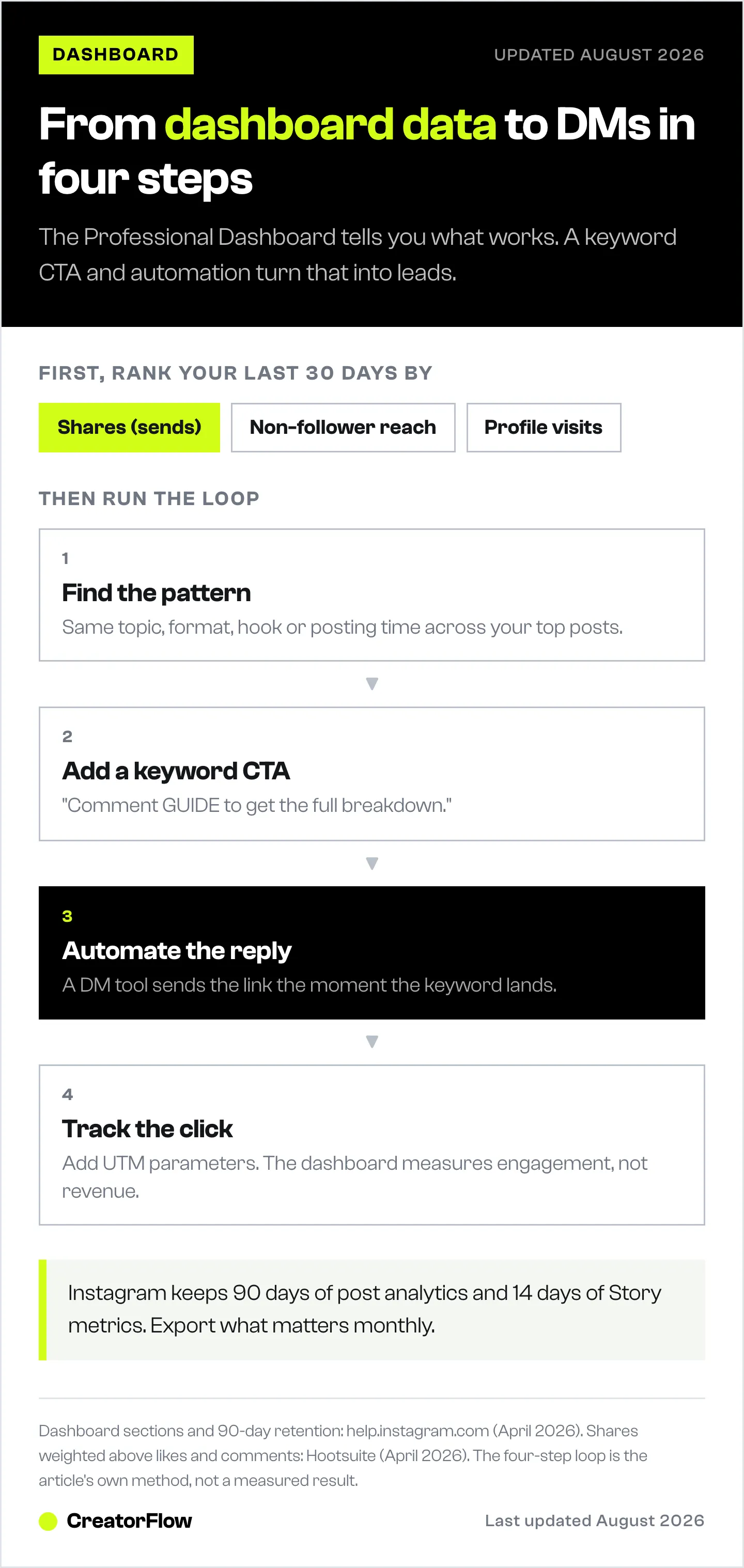
Step 1: Identify Your Top-Performing Content
Open the Professional Dashboard. Look at the last 30 days. Find your top 3-5 posts by:
- Highest shares (sends): These are the posts the algorithm wants to push
- Highest non-follower reach: These are breaking into new audiences
- Highest profile visits: These made people curious enough to check you out
If you want a second opinion on what your grid is doing, run your handle through our free Instagram account audit tool and compare its read against the dashboard.
Step 2: Find the Pattern
What do those top posts have in common?
- Same topic or niche?
- Same format (Reel, carousel, single image)?
- Same type of hook in the first 1-3 seconds?
- Posted at a specific time?
That pattern is your content formula. Make more of what works.
Step 3: Add a CTA That Drives DMs
Take your winning content formula and add a call-to-action that moves followers into your DMs:
- “Comment GUIDE to get the full breakdown”
- “Reply YES to this Story for the free template”
- “DM me PRICING for the details”
Step 4: Automate the Response
This is where the dashboard stops and automation starts. When 50+ people comment “GUIDE” on your Reel, you can’t reply manually to each one.
Instagram DM automation tools like CreatorFlow detect trigger keywords and send pre-written DMs instantly. The DM carries your link, and the email gate can collect an email address before the link is released.
The full loop:
- Dashboard tells you which content works
- You make more of that content with a DM trigger CTA
- Automation handles the response at scale
- You capture leads while you sleep
That’s the difference between checking analytics and using analytics. Read our Instagram DM automation complete guide for the full setup walkthrough.
Professional Dashboard Limitations (And Workarounds)
90-Day Data Retention
Instagram only stores analytics for the last 90 days (help.instagram.com, April 2026). After that, the data disappears.
Workaround: Export or screenshot your key metrics monthly. Tools like Meta Business Suite allow CSV exports for some metrics. Third-party tools like Iconosquare or Metricool store historical data beyond 90 days.
No Revenue Attribution
The dashboard shows engagement, not revenue. You can see that a Reel got 10,000 views, but not how many of those viewers bought your product.
Workaround: Use UTM parameters on every link you share via DMs. Track conversions in Google Analytics or your e-commerce platform. CreatorFlow includes built-in link click tracking for automated DMs.
Limited Story Analytics
Story metrics disappear after 14 days (compared to 90 days for posts and Reels).
Workaround: Check Story performance weekly, not monthly. Screenshot or log important Story campaign results within the 14-day window.
No Audience Overlap Data
You can see your audience demographics, but not how your audience overlaps with other accounts.
Workaround: Use Competitive Insights for directional comparisons. For deeper audience overlap analysis, use third-party tools.
Professional Dashboard vs. Third-Party Analytics Tools
| Feature | Professional Dashboard | Third-Party Tools (e.g., Iconosquare, Metricool) |
|---|---|---|
| Price | Free (built-in) | Paid monthly subscription, priced per account or per brand |
| Data retention | 90 days | 12+ months |
| Competitor tracking | Up to 10 accounts (basic) | Unlimited with deep metrics |
| Cross-platform | Instagram only | Instagram + TikTok + Twitter + more |
| Revenue tracking | No | Yes (with integrations) |
| Custom reports | No | Yes (PDF, email, dashboards) |
| Best for | Daily quick checks, free insights | Agencies, serious analytics, long-term trends |
Verdict: Start with the Professional Dashboard. It’s free, accurate, and covers the basics. Add a third-party tool only when you need historical data beyond 90 days or cross-platform reporting. Once you understand your best content, explore how to make money on Instagram by converting that engagement into revenue.
FAQ
Do I need a Business or Creator account to access the Professional Dashboard?
Yes. The Professional Dashboard is only available on Business and Creator accounts. Personal accounts don’t have access. Switching is free and takes about 30 seconds: go to Settings → Account type and tools → Switch to professional account (help.instagram.com/502981923235522, April 2026).
What’s the difference between a Business account and a Creator account?
Both get the Professional Dashboard. Creator accounts are designed for influencers and public figures with music library access and simplified contact options. Business accounts are designed for brands and companies with shopping, ads, and API access. For DM automation, either works. Meta requires an Instagram Business or Creator account to use its messaging API, which both account types satisfy (help.instagram.com/138925576505882, April 2026).
How often does the Professional Dashboard update?
Data refreshes in near real-time for recent posts (within a few hours). Historical data and aggregate metrics update daily. Competitive Insights data may lag by 24-48 hours.
Can I export data from the Professional Dashboard?
The in-app dashboard doesn’t have a direct export button. Use Meta Business Suite for CSV exports of some metrics, or use third-party tools that connect via Meta’s Instagram API for automated reporting.
Does switching to a Business/Creator account hurt my reach?
No. Instagram has confirmed that account type does not affect algorithmic reach. This is a persistent myth. The algorithm ranks content based on engagement signals, not account type (help.instagram.com/138925576505882, April 2026).
How do I use the Professional Dashboard with DM automation?
The dashboard shows you which content performs best. Use that data to create more high-performing content with keyword CTAs (e.g., “Comment LINK”). Then connect a DM automation tool like CreatorFlow to auto-respond when followers comment. The dashboard tracks reach and engagement; automation handles the conversion.


