
CreatorFlow’s Email Gate is a Pro feature that asks for an email address inside the Instagram DM before your link is delivered. A follower comments your keyword, gets a DM requesting their email, types it, and receives the link. Every address lands on the Contacts page with the source automation attached, and exports to CSV for Mailchimp, ConvertKit, Beehiiv, or any email platform.
Your Instagram followers comment, reply to Stories, and send DMs every day. But Instagram owns that relationship. If the algorithm shifts, your reach drops, or your account gets restricted, you lose access to those people. Email is the one channel you fully control.
Most creators know they need an email list. Few have a system that builds one from Instagram without extra steps. The standard approach (post “link in bio,” hope people click, land on a page, fill out a form) loses 80-90% of interested followers along the way. Email Gate removes most of that friction by collecting the email right inside the DM conversation.
This guide covers how Email Gate works, how to manage contacts inside CreatorFlow, when to use it versus when to skip it, and how to build a system across multiple automations. If you want the broader picture on email collection methods from Instagram DMs, start there first.
Key Takeaways
- Email Gate captures emails before sending links - person comments keyword, gets DM asking for email, types it, then receives the link
- Contacts page stores all captured leads - see username, email, source automation, and last interaction in one dashboard
- CSV export lets you move contacts anywhere - download your list and import into Mailchimp, ConvertKit, Beehiiv, or any email platform
- Use Email Gate on high-value content only - lead magnets, exclusive guides, and discount codes convert best; skip it for casual link shares
- Multiple automations feed one contact list - every Email Gate automation adds to the same Contacts page, building a unified list
- Geographic insights show where your audience clicks from - combine Contacts data with CreatorFlow’s Insights to understand your audience by location
- Email Gate is a Pro feature - available on CreatorFlow Pro ($15/month) and Growth ($30/month) plans
Why Email Gate Beats Landing Pages
The traditional email capture funnel has six steps:
- Follower sees your post
- Clicks “link in bio”
- Finds the right link on your landing page
- Clicks through to signup form
- Enters email address
- Confirms subscription
Each step loses people. A post with 100 interested followers might yield 5-10 email signups through this path.
Email Gate reduces it to two steps:
- Follower comments your keyword
- Types their email in the DM conversation
That’s it. No leaving Instagram. No landing page. No form fields. The conversion happens where the attention already is.
The numbers tell the story:
| Capture Method | Steps Required | Typical Conversion Rate |
|---|---|---|
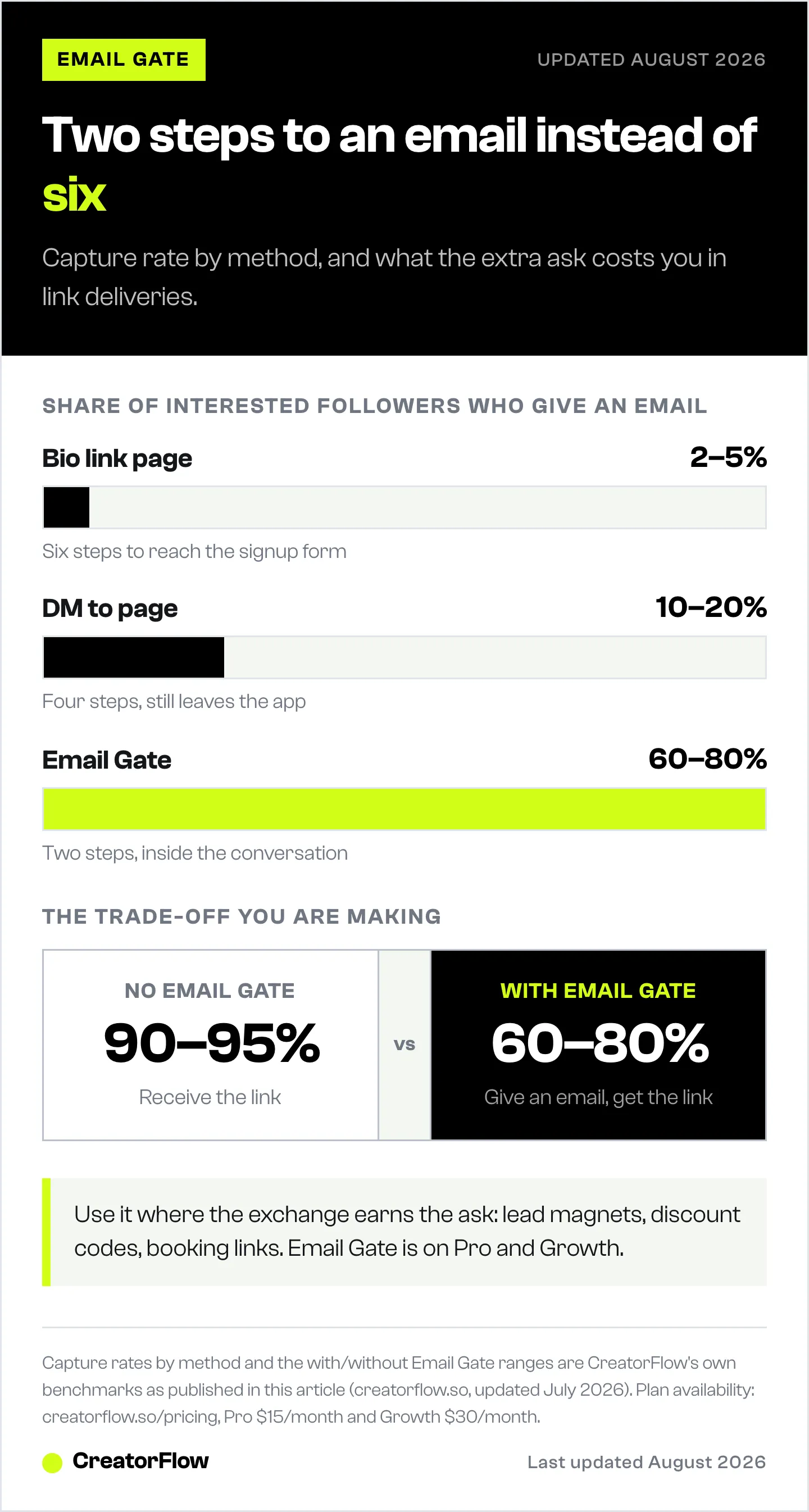
| Link in bio to landing page | 6 steps | 2-5% of interested followers |
| DM with link to landing page | 4 steps | 10-20% of interested followers |
| Email Gate inside DM | 2 steps | 60-80% of interested followers |
The difference comes down to friction. People are already in Instagram. They already showed interest by commenting. Asking for an email inside that same conversation feels natural. Sending them to an external page feels like work.
For a deeper breakdown of building a full email funnel from Instagram, check our dedicated guide.
How Email Gate Works in CreatorFlow
What Your Follower Experiences
Here is the full flow from your follower’s perspective:
- They see your Reel or post with a call-to-action: “Comment GUIDE to get my free meal prep template”
- They comment “GUIDE”
- CreatorFlow sends an instant DM: “Hey! I’d love to send you the meal prep template. What’s your best email? I’ll include a bonus shopping list too.”
- They reply with their email address
- CreatorFlow validates the email format, saves it to your Contacts, and sends a second DM with the link
The whole exchange takes 15-30 seconds. Your follower gets what they wanted. You get their email address. Both sides win.
Setting Up Email Gate in CreatorFlow
Setup takes under 5 minutes:
- Create a new automation in your CreatorFlow dashboard
- Set your trigger - choose the post or Reel, then add your keyword (example: “GUIDE”)
- Enable Email Gate - toggle it on in the automation settings
- Write your email ask message - this is the DM that requests their email address. Keep it friendly and tell them what they get in return.
- Write your delivery message - this is the DM sent after they provide their email, containing your link or content
- Activate - turn the automation on and test it with your own account
Tips for your email ask message:
- Tell them exactly what they get for sharing their email
- Keep it to 2-3 sentences
- Sound like a person, not a form
- Mention that their email stays private
Example email ask messages:
For a lead magnet: “Thanks for your interest! What’s your email? I’ll send you the full 30-day workout plan plus a bonus nutrition guide.”
For a discount code: “Hey! I’ve got a 20% discount code ready for you. Drop your email below and I’ll send it right over.”
For a booking link: “Great to hear you’re interested! What’s your email? I’ll send my calendar link plus some info about what to expect in our first call.”
Managing Your Contacts in CreatorFlow
Every email captured through Email Gate appears on your Contacts page. This is your central hub for all leads collected across every automation.

What You See on the Contacts Page
Three metric cards at the top:
- Total Contacts - the running count of every person who gave their email through any automation
- With Email - contacts that have a verified email address (indicated by a green checkmark)
- Active Today - contacts who interacted with an automation in the current day
The contacts table shows four columns:
- Contact - Instagram display name and @username
- Email - the email address they provided, with a verification checkmark
- Source - how the email was captured (shows “Email Gate” for all contacts collected through the gate)
- Last Interaction - when they last triggered an automation (e.g., “about 1 month ago”)
Use the search bar to find specific contacts by name or username. The Export to CSV button sits in the top right corner.
Why Source Tracking Matters
Source tracking tells you which content drives email signups. If your Reel about “5 morning habits” captures 200 emails but your post about “my favorite apps” captures 12, you know what your audience wants more of.
This data shapes your content strategy. Double down on topics that generate contacts. Test new angles on topics that underperform.
Exporting Contacts to CSV
CreatorFlow is not an email marketing platform. It captures and stores contacts. To send email campaigns, newsletters, or nurture sequences, export your contacts and import them into your email tool.
How to export:
- Go to your Contacts page
- Click the Export CSV button
- The file downloads with columns: username, email, source, date captured
Where to import your CSV:
| Email Platform | Import Method | Notes |
|---|---|---|
| Mailchimp | Audience > Import Contacts > CSV | Map email column during import |
| ConvertKit | Subscribers > Import > CSV | Tag imports by source for segmentation |
| Beehiiv | Settings > Import Subscribers > CSV | Supports direct CSV upload |
| Klaviyo | Lists & Segments > Import > CSV | Best for e-commerce creators on Shopify |
| MailerLite | Subscribers > Import > CSV | Free up to 1,000 subscribers |
Export frequency recommendation: Weekly for active creators. Set a recurring reminder. The faster contacts reach your email platform, the warmer they are when they receive your first email. If Flodesk is your platform, the walkthrough on growing your Flodesk email list with Instagram DMs covers the Zapier route for automatic syncing.
Pro tip: Tag or segment contacts by source when importing. If someone signed up through your “meal prep” automation, tag them “meal-prep” in your email platform. This lets you send targeted follow-ups based on what they originally showed interest in.
Email Gate Strategy: When to Use It and When to Skip It
Email Gate adds one extra step to your DM automation. That step costs you some conversions. Not everyone will provide their email. The question is whether the emails you collect are worth the drop in link delivery.
When to Use Email Gate
| Scenario | Why Email Gate Works |
|---|---|
| Lead magnets (free guides, templates, checklists) | High perceived value justifies the email ask |
| Discount codes and exclusive offers | People expect to share email for deals |
| Booking links for coaching or services | Qualifies leads before they book |
| Course or product launches | Builds pre-launch list from engaged followers |
| Gated content (exclusive videos, PDFs) | Exclusivity increases willingness to share email |
When to Skip Email Gate
| Scenario | Why to Skip |
|---|---|
| Affiliate links (Amazon, product recommendations) | Speed matters more than email capture. They want the link now. |
| Quick informational responses | Low-value exchange does not justify friction |
| Story reply automations for casual engagement | Keep it light. Don’t gate casual conversations. |
| New audience still building trust | Remove barriers first. Add Email Gate after they know you. |
The Conversion Trade-Off
Expect these rough benchmarks:
- Without Email Gate: 90-95% of people who trigger the automation receive the link
- With Email Gate: 60-80% provide their email and receive the link
You lose 15-35% of link deliveries. But you gain an email address for every person who does complete the flow. Whether that trade-off pays off comes down to what you are selling and how you plan to use the email list.
Rule of thumb: If you plan to send at least one follow-up email to these contacts, use Email Gate. If the interaction is one-and-done (like sharing an affiliate link), skip it.
Building a System: Email Collection Across Multiple Automations
The real power of Email Gate shows up when you use it across multiple automations, all feeding into the same Contacts page.
Keyword Segmentation Strategy
Create different automations with different keywords. Each one captures emails from a different audience segment:
Example for a fitness creator:
| Post Topic | Keyword | Email Gate Message | Contact Segment |
|---|---|---|---|
| Meal prep Reel | MEALS | ”What’s your email? I’ll send the full meal prep guide.” | Nutrition-interested |
| Workout Reel | WORKOUT | ”Drop your email for the complete 4-week program.” | Training-focused |
| Coaching promo | COACH | ”What’s your email? I’ll send my calendar and program details.” | High-intent leads |
| Supplement review | SUPPLEMENTS | ”Email for the full supplement breakdown and discount codes.” | Product buyers |
Each automation captures to the same Contacts page, but the source column tells you which keyword triggered the capture. When you export and import to your email platform, tag each group based on their source.
This means your fitness creator can send:
- Nutrition content to the MEALS segment
- Workout plans to the WORKOUT segment
- Sales emails to the COACH segment
- Product promotions to the SUPPLEMENTS segment
The result: One Instagram account feeding four targeted email segments. No manual sorting. No spreadsheets. Every contact is tagged by interest from the moment they provide their email.
Scaling Across Posts
You do not need a new automation for every post. CreatorFlow lets you assign the same keyword trigger across multiple posts. Your “GUIDE” keyword can work on this week’s Reel and next week’s carousel. All contacts land in the same Contacts page with source tracking showing which post drove each signup.
For a complete walkthrough on setting up Instagram DM automations, including keyword triggers and Story replies, see our full guide.
Combining Contacts Data with Insights
CreatorFlow’s Insights page shows geographic data about your link clicks. When you pair this with your Contacts data, you get a clearer picture of your audience.

What Insights Tells You
The Insights dashboard breaks down link clicks by:
- Country - which countries your audience clicks from
- City - specific cities where your links get the most engagement
- Click volume - how many clicks each location generates
How to Combine Contacts and Insights
Your Contacts page shows who signed up and which automation captured them. Insights shows where your audience is geographically. Together, they answer questions like:
- Are your US followers more likely to sign up than UK followers? Compare geographic click data with contact capture rates.
- Which cities should you target with paid ads? High contact capture in a specific city means your content resonates there.
- Should you adjust your posting schedule? If most contacts come from a specific timezone, post when that audience is active.
This data is especially valuable for coaches and service providers who serve specific regions. If 40% of your contacts come from Los Angeles, you might create content that speaks to that audience specifically.
Privacy Best Practices for Email Collection
When you collect email addresses, you take on responsibility for handling that data respectfully. Here are recommended practices that smart creators follow to build trust and protect their audience.
Be transparent about what you will use the email for. In your Email Gate message or in the DM after collecting the email, briefly state your intention. Something like: “I’ll use your email to send you the guide and occasional tips. You can unsubscribe anytime.”
Link to a privacy policy. If you collect emails regularly, have a simple privacy policy on your website that explains what data you collect, how you use it, and how someone can request deletion. This builds trust and aligns with data protection best practices in most regions.
Include an unsubscribe option in every email you send. Every email platform (Mailchimp, ConvertKit, Beehiiv) adds unsubscribe links automatically. Make sure this is enabled and visible.
Honor deletion requests promptly. If someone asks you to remove their email, do it. Delete them from your email platform and note the request. This is both a trust signal and a best practice under most data protection frameworks.
Do not sell or share email addresses with third parties. Your followers shared their email with you, not with other brands. Keep it that way.
Recommended practices for creators collecting emails:
- Tell followers what you will send them before asking for the email
- Keep a simple privacy policy accessible on your website or link-in-bio
- Use an email platform that handles unsubscribe and compliance features automatically
- Respond to data deletion requests within a reasonable timeframe
- Store contacts securely and limit access to people who need it
This is general guidance, not legal advice. Consult a qualified legal professional for advice specific to your business and jurisdiction.
FAQ
How does Email Gate work in CreatorFlow?
When a follower comments your keyword, CreatorFlow sends an automatic DM asking for their email address. The follower types their email in the DM. CreatorFlow validates the format, saves the contact, and sends a second DM with your link or content. The entire flow happens inside Instagram DMs.
Is Email Gate available on the Free plan?
No. Email Gate is a Pro feature, available on CreatorFlow Pro ($15/month) and Growth ($30/month) plans. The Free plan includes comment-to-DM and Story reply automation but does not include Email Gate or CSV export.
What happens if someone types an invalid email?
CreatorFlow checks the email format before saving it. If someone types something that is not a valid email address (missing @ sign, no domain, etc.), the automation can prompt them to try again. Only properly formatted emails are saved to your Contacts.
Can I export my contacts to any email platform?
Yes. CreatorFlow exports contacts as a CSV file. Any email platform that accepts CSV imports (Mailchimp, ConvertKit, Beehiiv, Klaviyo, MailerLite, ActiveCampaign, and others) can receive your contacts. You map the email column during import.
How many emails can I collect per month?
Email Gate works within your plan’s DM limits. On Pro, you can send up to 5,000 DMs per month per workspace. Each Email Gate conversation uses two DMs (one to ask for the email, one to deliver the link). On Growth, the limit is 10,000 DMs per month per workspace.
Does Email Gate slow down the automation?
It adds one step. Without Email Gate, the follower comments and receives the link instantly. With Email Gate, there is a pause while the follower types their email. Most people respond within 30 seconds to 2 minutes. The link delivery DM sends immediately after they provide their email.
Can I use Email Gate on Story reply automations?
Yes. Email Gate works on both comment-to-DM automations and Story reply automations. When someone replies to your Story, the automation asks for their email before sending the link, the same way it works on post comments.
How do I know which automation captured each contact?
The Contacts page includes a Source column that shows which automation (and keyword) captured each email. This lets you track which posts and keywords generate the most leads.
Should I use Email Gate on every automation?
No. Use Email Gate on high-value content where the exchange justifies the extra step: lead magnets, exclusive content, discount codes, and booking links. Skip it for casual link shares, affiliate links, and low-value quick responses where speed matters more than email capture.
What privacy practices should I follow when collecting emails?
Be transparent about how you will use the email. Include unsubscribe links in every email you send. Honor deletion requests. Keep a privacy policy on your website. Do not share or sell email addresses. Use an email platform that handles compliance features automatically. This is general guidance, not legal advice. Consult a qualified legal professional for advice specific to your situation.


