

If you can’t connect your Instagram account to a DM automation tool, the cause is almost always one of six things: the account is still a personal account, your browser is logged into a different Instagram account, you declined one of the requested permissions, your username starts with an underscore, you picked the wrong account at the chooser step, or an old token needs refreshing. Work through them in that order and most connections complete in under five minutes.
The connect step is where more people get stuck than anywhere else in setting up Instagram automation. It is also the step with the least useful error messages, because the failure usually happens on Instagram’s side and the tool only learns that something went wrong.
This guide covers each cause, how to tell which one you have, and the exact fix.
Key Takeaways
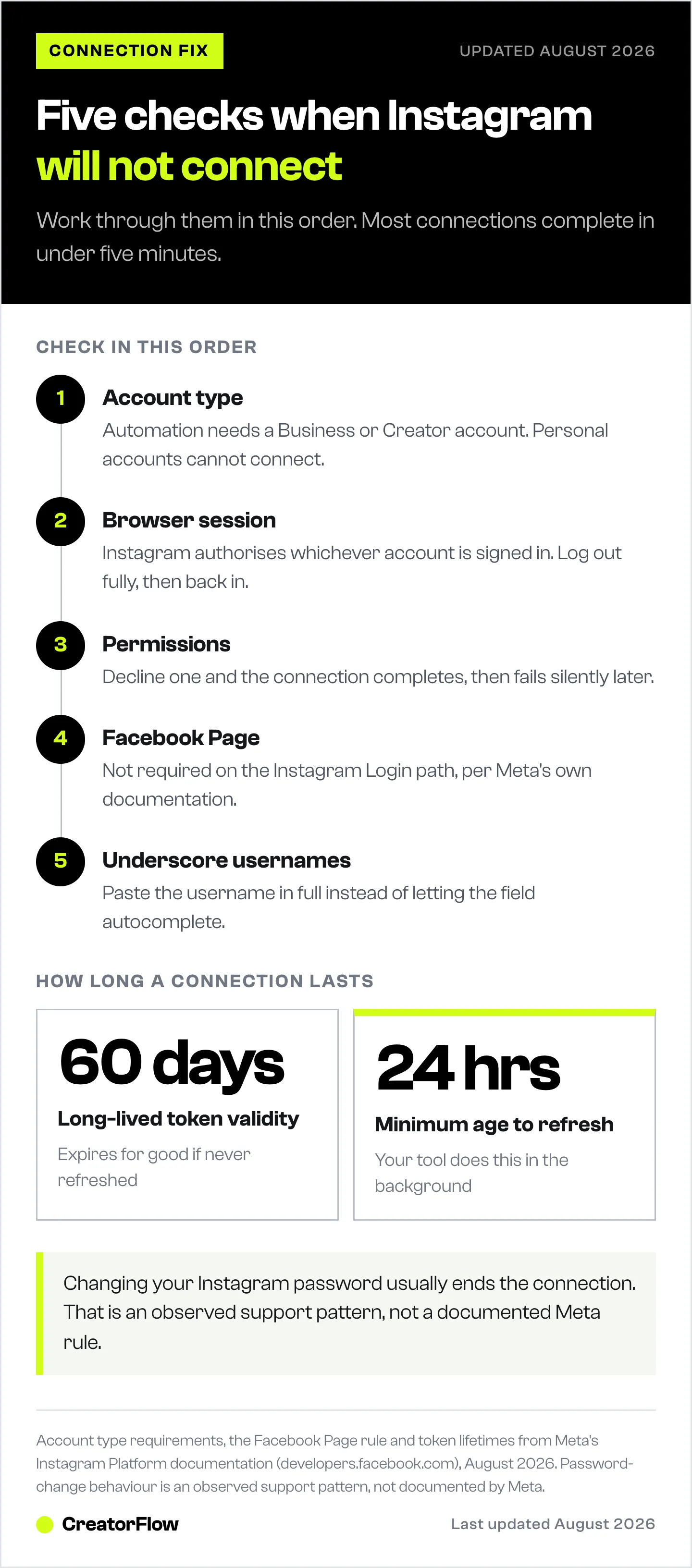
- Check the account type first. Automation requires a Business or Creator account. Personal accounts cannot connect, and this is the most common cause
- Your browser matters. The connection uses whichever Instagram account is logged in on the browser, not the one you meant to use
- Accept every permission. Declining even one during the authorisation screen produces a connection that fails later
- A Facebook Page is not required to connect an Instagram account through Instagram Login. Meta’s own documentation states this setup “does not require a Facebook Page to be linked to the Instagram professional account” (developers.facebook.com, August 2026)
- Usernames starting with an underscore need to be pasted in full rather than searched for
- Long-lived tokens are valid for 60 days and your tool refreshes them in the background. Revoking the app’s access ends the connection, and a password change usually does too
- Never accept a dead end. If the flow fails, log out of Instagram in the browser, then start the connection again from the tool
First, Confirm Your Account Type
Instagram automation runs through Meta’s official API, and that API only works with Business and Creator accounts. A personal account cannot connect to any compliant tool, no matter which one you pick.
To check, open the Instagram app, go to your profile, then Settings and privacy, then Account type and tools. It will name your current type.
If it says Personal, switch it. Choose Switch to professional account, then pick Creator or Business. Creator suits individual people. Business suits stores and companies. Both work for DM automation.
The switch is free, takes about thirty seconds, and does not affect your followers, posts or reach. This single check resolves a large share of failed connections.
If a tool refused a Creator account specifically, switching to Business is usually the wrong fix. Meta supports both types, and our guide on whether you need a Business account for Instagram tools covers what the error is normally pointing at.
Make Sure the Right Account Is Logged In
This one causes the most confusion, because nothing looks broken.
When you start the connection, the tool sends you to Instagram to authorise it. Instagram authorises whichever account is currently signed in on that browser. If you are signed into a second account, a client’s account, or an old account you forgot about, that is the account that gets connected.
The symptom is a connection that appears to succeed and then shows the wrong username, or an automation that never fires because it is attached to an account you are not posting from.
The fix, in order:
- Open instagram.com in the same browser you use for the tool
- Check the account shown in the top corner
- If it is wrong, log out completely rather than switching accounts
- Log in as the account you want to connect
- Return to the tool and start the connection again
Logging out fully matters. Instagram keeps multiple sessions alive, and simply switching within the app does not always change which account the browser presents during authorisation.
If your tool offers an account chooser during the connection, read it carefully rather than accepting the default. The default is the browser-active account, which is exactly the thing that just went wrong.
Accept Every Permission
During authorisation, Instagram lists the permissions the tool is requesting. These typically cover reading your posts and comments, sending messages, and viewing basic profile information.
Every one of them is required for comment-to-DM automation. Reading comments is how the automation knows someone typed the keyword. Sending messages is how the DM goes out.
If you decline any single permission, the connection often still completes. It then fails later, silently, when the automation tries to do the thing you did not authorise. That is why this cause is hard to spot: the connect step looked fine.
If you suspect you declined something, revoke the app’s access and reconnect from scratch. In the Instagram app, go to Settings and privacy, then Website permissions, then Apps and websites, remove the tool, then start the connection again and accept everything.
You Do Not Need a Facebook Page
Older guides say you must link a Facebook Page to your Instagram account before automation will work. That was true on the older integration path. Meta’s current documentation for the Instagram API with Instagram Login states plainly that the setup “does not require a Facebook Page to be linked to the Instagram professional account” (developers.facebook.com, August 2026).
If you have been trying to create a Facebook Page, link it, and troubleshoot the connection between the two, stop. It is not the cause of your problem, and the extra plumbing introduces its own failures.
Connect the Instagram account directly. If a tool still requires a Facebook Page, that tells you it is running on the older integration.
If Your Username Starts With an Underscore
Usernames beginning with an underscore, such as an account written as underscore-then-name, sometimes fail to appear when you type them into a search field during setup.
Paste the full username instead of typing part of it and letting the field search. If the field offers a manual entry option, use it.
The same advice applies to usernames containing repeated underscores or unusual characters. Enter them complete rather than relying on autocomplete.
When the Connection Dead Ends
Sometimes the flow ends on an error page with no way forward. Do not repeat the same attempt, because it will produce the same result.
Reset the state instead:
- Log out of Instagram in the browser completely
- Clear cookies for instagram.com, or open a private window
- Confirm the account is Business or Creator
- Log in as the correct account
- Start the connection again from the tool, not from a back button or a stale tab
The private window is the quickest version of this, because it guarantees no old session is influencing which account Instagram presents.
If it still fails after a clean attempt, that is the point to contact support, and the useful details to include are your Instagram username, your account type, the browser you used, and the exact wording of the error.
Keeping the Connection Working
Long-lived Instagram access tokens are valid for 60 days, and a tool can refresh one by calling Meta’s refresh endpoint once the token is at least 24 hours old. Tokens not refreshed within 60 days expire and cannot be refreshed after that (developers.facebook.com, August 2026). In practice your automation tool handles this in the background, so a healthy connection stays working without attention.
Two things commonly end a connection early:
- Changing your Instagram password. Reconnect the tool after any password change. Meta does not document this behaviour publicly, but it is the pattern we see most often in support
- Revoking access in Instagram’s Apps and websites settings, whether deliberately or while clearing out old apps
Both produce the same symptom: automations that ran fine yesterday stop firing today, with no error at the point of failure. If your automation has gone quiet, our guide to Instagram automation that stopped working covers the wider set of causes, and comment-to-DM not sending covers the case where the automation is live but no messages go out.
FAQ
Why won’t my Instagram account connect to a DM automation tool?
The most common reason is that the account is still a personal account. Meta’s API only supports Business and Creator accounts. After that, the usual causes are a different account being logged into your browser, a declined permission during authorisation, or a token ended by a recent password change.
Do I need a Facebook Page to connect Instagram to automation?
No. On the current Instagram Login path, a Facebook Page is not required (as of July 2026). Older guides describing a required Page link refer to the previous integration path.
How do I switch my Instagram to a Business or Creator account?
Open the Instagram app, go to your profile, then Settings and privacy, then Account type and tools, then Switch to professional account. Pick Creator or Business. It is free, takes about thirty seconds, and does not affect your posts or followers.
The tool connected the wrong Instagram account. How do I fix it?
The connection uses whichever account is signed in on your browser. Log out of instagram.com completely, log back in as the account you want, then start the connection again from the tool. Switching accounts inside the app is not always enough.
Why did my Instagram connection stop working after I changed my password?
Reconnecting after a password change is the reliable fix, and it is the most common cause we see when a working connection suddenly stops. Meta does not publish this behaviour in its developer documentation, so treat it as an observed pattern rather than a documented rule. Your automations resume once you reconnect.
What permissions does Instagram DM automation need?
Reading your posts and comments, sending messages, and basic profile information. All are required for comment-to-DM automation to work. Declining any one of them produces a connection that appears to succeed and then fails silently.
How long does an Instagram automation connection last?
Long-lived tokens are valid for 60 days and can be refreshed once they are at least 24 hours old. A token left unrefreshed for 60 days expires and cannot be renewed (developers.facebook.com, August 2026). Your tool normally refreshes in the background. Revoking the app’s access in Instagram settings ends the connection straight away.
Once You Are Connected
The connect step is the hardest part of the setup, and it is a one-time cost. After it completes, building the first automation takes a few minutes: pick the post, pick the keyword, write the message, add the link.
CreatorFlow is a Meta Tech Provider (since December 2025) and connects through Instagram Login with OAuth, so no password is ever shared. Our complete guide to Instagram DM automation takes it from a connected account to a working automation, and the comment-to-DM setup guide covers keyword choice in more depth.
Account type requirements, the Facebook Page requirement and token lifetimes verified against Meta’s Instagram Platform documentation (developers.facebook.com) as of August 2026. Password-change behaviour is an observed support pattern, not a documented Meta rule. Individual results vary.


