

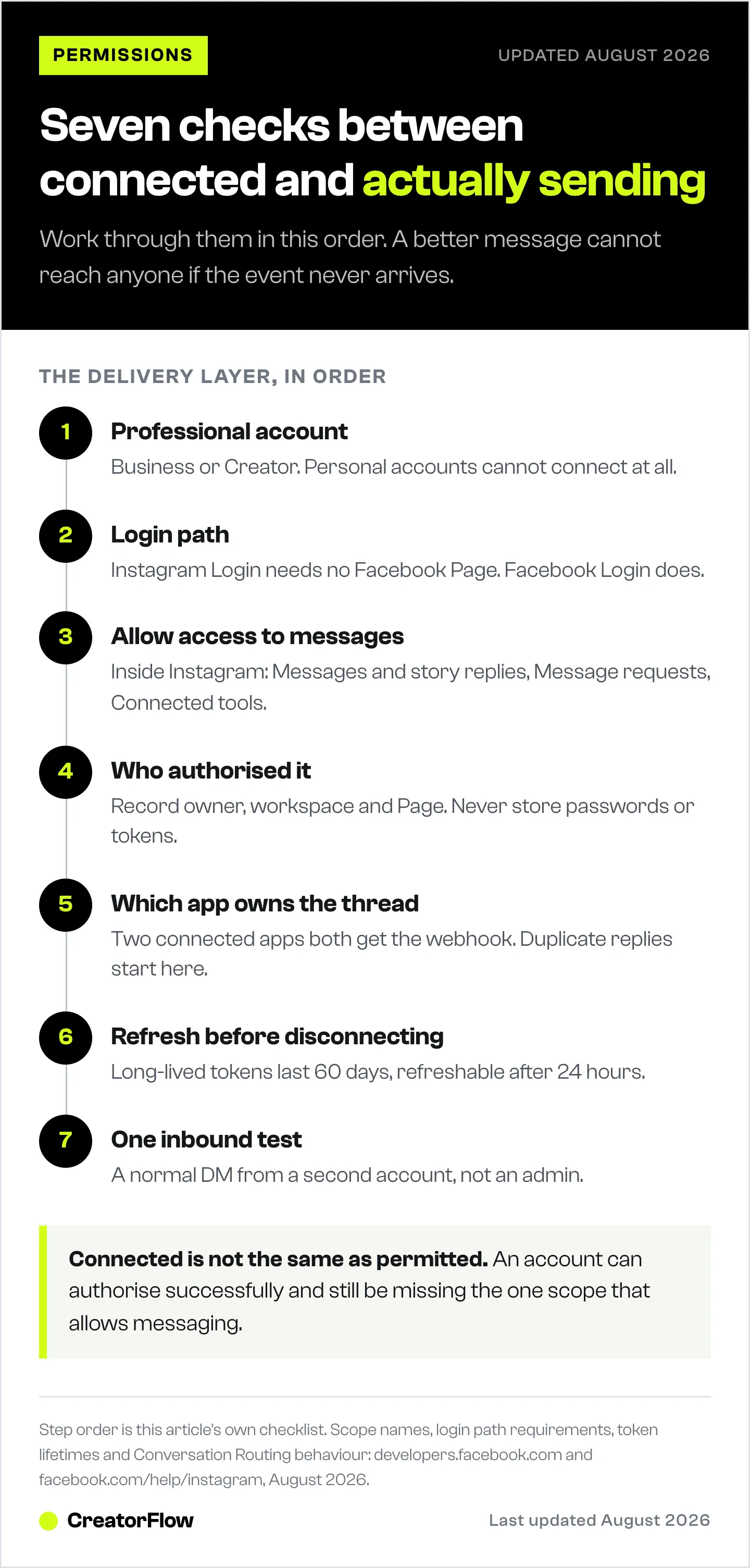
Instagram DM automation can show a connected account and still send nothing, because connecting an account and permitting an app to message are two separate states. Seven checks cover almost every case: account type, login path, the Allow access to messages toggle, who authorised the connection, which app owns the conversation, token freshness, and one valid inbound test. Work through them in that order.
The dashboard says connected. The test comment gets no reply. Nothing in the error log looks obviously wrong. So you rewrite the keyword, rebuild the automation, and try a different post, and none of it changes anything, because the problem was never the automation.
This guide is the permission layer between “the account is linked” and “a message actually goes out”. It uses Meta’s own documentation for every setting path and scope name, so you are checking against the platform rather than against a tutorial written for a different login method.
If the message reaches Instagram but you never see it, the problem is inbox routing rather than permissions, and Instagram message requests not showing covers where it went.
Key Takeaways
- Connected is not the same as permitted. An account can authorise successfully and still be missing the one scope that allows messaging
- Two login paths exist and they have different requirements. Instagram Login needs no Facebook Page. Facebook Login does. Check which one your tool uses before you troubleshoot a Page you may not need (developers.facebook.com, August 2026)
- Allow access to messages is a separate toggle inside Instagram. It sits under Messages and story replies, then Message requests, then Connected tools. With it off, you can only send from Instagram itself (facebook.com/help/instagram, August 2026)
- Two connected apps can both reply to the same message. Meta calls the unconfigured state zero config behavior, where every connected app receives the webhook and any of them can respond (developers.facebook.com, August 2026)
- Long-lived tokens last 60 days and can be refreshed once they are at least 24 hours old. A token left unrefreshed past 60 days expires and cannot be renewed
- Refresh before you disconnect. Removing apps at random turns one unknown into five and loses the record of what was working
- Test inbound, from a second account. A message sent by an admin proves less than a normal DM from someone who is not on the team
What Permissions Does Instagram DM Automation Need?
Three things, granted in three different places. The account has to be a Business or Creator professional account. The app needs instagram_business_manage_messages alongside the base instagram_business_basic scope, plus instagram_business_manage_comments if you run comment triggers. And Allow access to messages has to be on inside Instagram itself, under Messages and story replies, then Message requests, then Connected tools. Miss one and the account still shows as connected while nothing sends.
Connected and Permitted Are Two Different States
Instagram DM automation fails in two layers, and they need different fixes.
| Layer | What you see | What to inspect |
|---|---|---|
| Delivery | Account will not connect, no events arrive, sends fail, comment triggers cannot see posts, two replies arrive | Account type, login path, message access, connection owner, app routing, token age |
| Behaviour | The message sends, but it is late, off-brand, or goes to the wrong person | Keyword setup, trigger post, message copy, follow-up timing |
Fix the delivery layer first. A better message cannot reach anyone if the event never arrives, and adding a second automation on top of a routing conflict makes the failure harder to see, not easier.
This guide covers the delivery layer. Two neighbouring cases have their own guides. If the account will not finish the connection flow at all, start with why your Instagram account will not connect. If the automation ran fine for weeks and then stopped, the automation stopped working guide covers the causes that appear over time.
Step 1: Confirm the Account Is a Professional Account
Meta supports two professional account types for API access: Business and Creator. The Instagram API with Facebook Login documentation states plainly that it “cannot access Instagram consumer accounts (i.e., non-Business or non-Creator Instagram accounts)” (developers.facebook.com, August 2026).
Personal accounts cannot connect, and no permission fix changes that.
Check it in the app: profile, then Menu, then Settings and privacy, then Account type and tools. If it offers “Switch to professional account”, the account is still personal. Switching is free and takes about thirty seconds without affecting posts or followers.
One naming trap wastes a lot of time here. “Business Instagram” often means the business owns the account, not that the account type is set to Business. Write down the technical setting, not the description. Both Business and Creator are professional accounts and both are API-eligible, though individual tools can add their own requirements on top. The Creator versus Business account comparison covers which one suits which workflow.
| Record this | Value |
|---|---|
| Instagram handle | |
| Account type | Business or Creator |
| Account is public | Yes or No |
| Professional dashboard visible | Yes or No |
Step 2: Find Out Which Login Path Your Tool Uses
“Connect Instagram” hides a real technical fork, and it is the single biggest source of contradictory advice online.
Meta documents two API setups for professional accounts:
Instagram API with Instagram Login. Meta’s documentation states: “This API setup does not require a Facebook Page to be linked to the Instagram professional account” (developers.facebook.com, August 2026). This is the path most Instagram-first automation tools use, CreatorFlow included.
Instagram API with Facebook Login. This path runs through a Facebook Page linked to the professional account, and Page access matters.
That fork means two confident statements are both wrong: “every Instagram automation needs a Facebook Page” and “Facebook Pages never matter anymore”. The right answer depends on the path your tool authorised through.
On the Instagram Login path, Meta replaced the old scope names in January 2025. The current four are:
| Scope | What it unlocks | Missing it means |
|---|---|---|
| instagram_business_basic | Base profile and account access, required alongside everything else | Nothing else can be granted; the whole request fails |
| instagram_business_manage_messages | Sending and receiving DMs | The account connects, but messages never send |
| instagram_business_manage_comments | Reading and replying to comments on your media | Comment triggers cannot see or act on comments |
| instagram_business_content_publish | Getting and publishing media | Publishing features do not work; messaging is unaffected |
Source: developers.facebook.com, Instagram API with Instagram Login, August 2026.
The important one for automation is instagram_business_manage_messages. Without it, authentication succeeds and API calls run, and the messaging endpoint returns a permission error. That is the exact shape of “connected but silent”. The base scope has to be requested in the same authorisation as the messaging scope, which is why declining a single checkbox during the flow can break messaging while leaving the connection looking healthy.
If the tool does not tell you which login path it used, ask support before changing anything. Guessing from the logo on the login button gets it wrong often enough to matter.
| Record this | Value |
|---|---|
| Automation tool | |
| Login path | Instagram Login, Facebook Login, or Meta Business Suite |
| Facebook Page required for this path | Yes, No, or confirm with the tool |
| Linked Page, if required | |
| Date connected |
Step 3: Turn On Allow Access to Messages
This is the setting most people never find, and it lives inside Instagram rather than inside the automation tool.
Meta’s help documentation describes it directly: “If you allow access to Instagram messages, you can view or send Instagram messages on Facebook Pages, Meta Business Suite, Business Manager and other third-party apps you use to manage your account. If you don’t allow access, you can only view and send Instagram messages from Instagram” (facebook.com/help/instagram, August 2026).
The exact path, from the same page:
- Go to your profile and tap Menu in the top right
- Select Messages and story replies
- Select Message requests
- Under Connected tools, toggle on Allow access to messages
Several third-party guides put this under Settings, then Privacy, then Messages. That path is out of date. Use the one above.
Two details worth noting. The setting only appears for accounts connected to Facebook Pages, Meta Business Suite, Business Manager or third-party apps, so a brand new professional account may not show it until something is connected. And it is a global switch, not a per-app one, so turning it off cuts every connected tool at once.
Step 4: Record Who Authorised the Connection
The person who set up the automation is often not the person who owns the Instagram account, the Facebook Page, the business portfolio, or the tool workspace.
That gap is what turns a five-minute permission refresh into a two-day investigation. An agency contractor connects the account and their contract ends. A client changes the Facebook profile they use to log in. A Page moves to a different business portfolio. Everyone can still log into something, and nobody knows which identity created the working connection.
Write these down once, and keep them beside the workflow documentation rather than in someone’s memory. Never record passwords, tokens or recovery codes.
| Ownership field | Value |
|---|---|
| Instagram account owner | |
| Tool workspace owner | |
| Person who authorised the connection | |
| Facebook Page owner, if applicable | |
| Business portfolio, if applicable | |
| Backup admin with approved access |
Solve access gaps through the platform’s own roles. Sharing a personal password to work around a missing role creates a connection nobody can audit later, and a password change then breaks the automation with no obvious cause.
Step 5: Check Which App Owns the Conversation
This step explains two symptoms almost nothing else does: replies arriving twice, and replies arriving in the wrong tool.
Meta retired the Handover Protocol for Instagram and migrated every business to Conversation Routing. Its documentation states: “Meta no longer supports the Handover Protocol for Instagram. All businesses have been migrated to Conversation Routing” (developers.facebook.com, updated June 30, 2026).
Conversation Routing decides which connected app is responsible for responding, based on how the conversation started. Meta names three entry point routes: link routing for ig.me links, campaign routing for click-to-Direct ads, and default routing for everything else organic.
The part that matters for troubleshooting is what happens when nobody has configured it. Meta calls this zero config behavior, and its documented consequences are specific:
- Multiple apps receive webhooks. If more than one application is connected, all applications receive messaging webhooks
- No coordination between apps. All connected applications can respond to the same user message without restrictions, which Meta describes as increasing the risk of duplicate responses
- Take Thread Control is blocked. That API only becomes available once a default application is set
- Only campaign routing is available. Link routing and default routing cannot be configured
Source: developers.facebook.com, Conversation Routing for Instagram, August 2026.
So if a follower gets two replies, the cause is usually not a duplicated automation. It is two connected apps both receiving the same webhook with nothing deciding between them. Meta Business Suite counts as one of those apps.
The practical fix for a solo creator or a small team is to reduce the number of apps that can respond, rather than to configure enterprise routing. Open Instagram, check which tools are connected, and remove the ones you are not using. One app answering one entry point is easier to debug than three apps racing.
Configuring routing properly is worth it once several tools genuinely need to coexist, and Meta lists real prerequisites: an Instagram Business account linked to a Facebook Page on the New Pages Experience, messaging enabled on that Page, at least one connected app with messaging permissions and webhook subscriptions, and you acting as the Page owner. The setting then lives in Facebook Page settings, under Page setup, then Instagram Conversation Routing.
One nuance that catches people who do configure it. Meta defines an idle thread as one with no user-to-business message in the last 24 hours, or one where the owner released control, and says only the default application can send messages in that state. If you set a default app and it is not your automation tool, your tool goes quiet in exactly the situations where you expected it to work.
Step 6: Refresh Permissions Before You Disconnect Anything
Permissions go stale. Password changes, ownership changes, reauthorisation, and edits to which Pages or businesses an app can access all shift the state.
Token behaviour on the Instagram Login path is documented and worth knowing, because it explains a failure that arrives with no warning:
- Short-lived tokens exchange for long-lived tokens that expire in 60 days
- A long-lived token can be refreshed once it is at least 24 hours old and has not expired
- A refreshed token is valid for 60 days from the refresh date
- A token that has gone 60 days without a refresh expires and cannot be renewed, which forces a full reconnect
Source: developers.facebook.com, Instagram Platform access token reference, August 2026.
Most tools refresh in the background, so this only surfaces on accounts that sat unused for two months or had their access revoked.
When you do need to fix permissions, order matters:
- Capture the current owner and login path first, so you can rebuild the same state
- Screenshot or export the active automation configuration if the tool does not preserve it
- Note which account, Page and business should be selected
- Use the tool’s supported refresh or reconnect flow
- Confirm every granted permission applies to the intended account, not a neighbouring one
- Run one inbound test before touching anything else
Disconnecting every app at once destroys the evidence. Change one layer, test, then change the next.
Step 7: Run One Inbound Test That Proves Delivery
Meta’s messaging model requires the person to message the professional account first before the account can send to them. That makes an inbound test the only honest baseline.
Test it like this:
- Use a second Instagram account that is not an admin, a team member, or the tool’s own test identity
- Send a normal DM, or trigger the real entry point you use, such as a comment keyword or a story reply
- Confirm the message appears in Instagram itself
- Confirm the intended tool received the event
- Confirm exactly one reply goes out, from the app you expected
- Reply again and check the conversation stays in the same thread
- Record the time, entry point, result, and who observed it
Two failure modes hide from a lazy version of this test. Testing from your own account often produces no event at all, because the account cannot message itself in the way the automation expects. And one passing DM does not prove every trigger works, since comment triggers, story replies and ad conversations each depend on different permissions and configuration.
If the message reaches Instagram but never reaches the tool, the problem sits in Steps 2, 3 or 5. If the tool receives it and the send fails, check the messaging window and pacing rather than permissions. Meta’s messaging window and Instagram API rate limits explain that side.
Symptom to Check: Fast Diagnostic Table
Use the symptom to pick the next inspection rather than resetting everything.
| Symptom | Check first | Then check |
|---|---|---|
| Account does not appear during connection | Account type, and which account the browser is logged into | Page access, if the tool uses Facebook Login |
| Connection loops or repeatedly fails | Allow access to messages, correct account in the browser | Supported refresh flow, existing connection in another workspace |
| Connects, but no DMs arrive | Inbound test from a second account, messaging scope | Whether another connected app received the event |
| Comment trigger cannot see posts | Correct account selected, comments scope | Refreshed permissions, trigger post still live and unedited |
| Message arrives, no reply sends | Messaging window still open, automation is active | Messaging scope, which app owns the thread |
| Two replies arrive | Number of connected apps | Routing configuration, or remove the unused app |
| Stopped after a password or team change | Original connection owner, token state | Reauthorise with the same assets selected |
| Everything delivers, replies feel wrong | Stop permission troubleshooting | Keyword setup, message copy, timing |
The last row matters most. Once one message travels end to end, you are no longer debugging permissions, and reconnecting a working integration will not improve the message. At that point the automation audit checklist is the better tool, because it looks for conversion leaks rather than delivery faults.
The Connection Record Worth Keeping
Store this next to your workflow documentation. It takes five minutes to fill in and removes most of the guesswork the next time something breaks. Do not put passwords, tokens, recovery codes or customer data in it.
| Field | Value |
|---|---|
| Instagram handle | |
| Account type | Business or Creator |
| Automation tool | |
| Login path | Instagram Login, Facebook Login, Meta Business Suite |
| Linked Facebook Page, if required | |
| Tool workspace owner | |
| Connection authorised by | |
| Backup admin | |
| Allow access to messages confirmed on | |
| Permissions last refreshed on | |
| Other apps connected to this inbox | |
| App that should answer first | |
| Last passing inbound DM test | |
| Last passing comment or story test |
If a contractor, VA, setter or agency partner leaves, the next person should be able to read this and test the connection without guessing.
Five Reactions That Make the Problem Worse
- Rewriting the message first. Copy cannot repair delivery. Prove one message travels end to end before judging the wording
- Assuming every setup needs a Facebook Page. Check the login path first. On Instagram Login, Meta states no Page is required
- Disconnecting every app at once. You lose the known state and gain four new variables
- Sharing a password to solve a role problem. Use the platform’s account, Page, business and workspace roles instead
- Calling one successful DM a launch test. Comment triggers, story replies and ad conversations each need their own passing test
FAQ
Why is my Instagram DM automation connected but not sending?
The connection and the messaging permission are granted separately. On the Instagram Login path, messaging requires instagram_business_manage_messages alongside the base instagram_business_basic scope. If that scope was declined or lost, the account still shows as connected while the messaging endpoint returns a permission error. Check the scope, then the Allow access to messages toggle, then whether a second connected app received the event instead.
Do I need a Facebook Page for Instagram DM automation?
Not on every path. Meta’s documentation for the Instagram API with Instagram Login states that this setup “does not require a Facebook Page to be linked to the Instagram professional account”. The Instagram API with Facebook Login runs through a Page, and Conversation Routing configuration requires one. Follow the requirement for the path your tool actually uses (developers.facebook.com, August 2026).
Where is the Allow access to messages setting?
In the Instagram app: profile, then Menu in the top right, then Messages and story replies, then Message requests. The toggle sits under Connected tools. With it off, messages can only be viewed and sent from Instagram itself, so no connected tool can reply (facebook.com/help/instagram, August 2026).
Why did two tools both reply to the same person?
Because nothing decided which one should. Meta’s Conversation Routing documentation describes an unconfigured state where all connected applications receive messaging webhooks and any of them can respond to the same message, which it names as a risk of duplicate responses. Either configure a default routing app, or disconnect the tool you are not using.
Can a Creator account use DM automation?
Yes. Meta treats Business and Creator accounts as professional accounts, and the Instagram API supports both. Only personal accounts are excluded. Individual tools may add their own requirements, so confirm with the tool if a Creator account is refused.
How long does an Instagram automation connection last?
Long-lived tokens expire after 60 days and can be refreshed once they are at least 24 hours old, with each refresh good for another 60 days. A token that goes unrefreshed for 60 days expires permanently and needs a fresh connection. Most tools refresh automatically, so this usually only affects dormant accounts or accounts where app access was revoked (developers.facebook.com, August 2026).
What breaks permissions without any obvious warning?
Password changes, revoking the app in Instagram settings, removing the account from a business portfolio, transferring a Facebook Page, and the person who authorised the connection losing access to their own account. None of these produce a clear error inside the automation tool, which is why recording the connection owner is worth the five minutes.
Once the Permission Layer Is Clean
A passing test does not mean the automation is good. It means the pipes work, which is the part you cannot fix with better copy.
The checks above take about twenty minutes on a fresh account and under five on one you have documented before. Run them before a launch, after any reconnect, and any time an automation that used to work goes quiet.
CreatorFlow is a Meta Tech Provider (since December 2025) and connects through Instagram Login with OAuth, so no password is shared and no Facebook Page is needed to link the account. Once the connection passes, the complete guide to Instagram DM automation covers building the first working automation, and the Meta compliance rules guide covers what the platform allows you to send once it does.
Scope names, login path requirements, Conversation Routing behaviour and token lifetimes verified against Meta’s Instagram Platform and Instagram Messaging documentation (developers.facebook.com) and the Instagram Help Center (facebook.com/help/instagram) as of August 2026. Setting paths inside the Instagram app change periodically. Individual results vary.


