

How to go live on Instagram depends on your device. On a phone, swipe right anywhere in Feed, scroll to Live at the bottom, add a title, and tap Go live. On a computer, you use Live Producer on Instagram.com with streaming software such as OBS. Either way, you need a public account with at least 1,000 followers.
Two details are easy to miss. Instagram changed who can go Live in August 2025, so guides written before then are out of date. Instagram also does not save comments with the video, so a question you miss on air is gone.
This guide gives the requirements as Instagram’s Help Center lists them, then how to go live on Instagram from a phone and a computer, then guests, scheduling and time limits. It ends with a plan for comments, which the top guides we read cover only briefly.
Key Takeaways
- Who can go Live: Instagram’s Help Center says only public accounts with 1,000 or more followers can start a Live. It lists no exception.
- Phone: Swipe right in Feed, scroll to Live, add a title, and tap Go live.
- Computer: Live Producer on Instagram.com needs streaming software, a URL and a stream key that refreshes each time you use it.
- Guests and scheduling: You can invite up to three guests, and each one must follow you. You can schedule from 1 hour to 90 days ahead in the app.
- Comments: Replays do not include comments, and Meta allows private replies to Live comments only during the broadcast.
- Bottom line: Pin one comment in the first minute, read each question aloud before you answer it, and share the replay as a reel when you finish.
What do you need to go live on Instagram?
You need a public Instagram account with at least 1,000 followers. That is the only follower rule Instagram lists, and it applies to starting a Live. Teen Accounts must turn the feature on first. Newly created accounts and accounts with removed posts may be blocked. You also need the Instagram app, or Instagram.com plus streaming software on a computer.
| Requirement | What Instagram says | What to do |
|---|---|---|
| Public account | Only public accounts can start a Live | Switch a private account to public first |
| 1,000 followers | The account needs “1,000 followers or more” | Grow to 1,000, or join someone else’s Live as a guest |
| Teen Accounts | Off by default. Under 16 needs a parent’s or guardian’s permission. Ages 16-17 can turn it on themselves | Turn it on in settings, with permission if under 16 |
| Past removals | You may not be able to go Live if a past post was removed for going against the Community Standards | Check your account status |
| New accounts | Newly created accounts may not be able to go Live | Instagram gives no waiting period, so try again later |
Those rules come from Instagram’s guide to starting a live video (checked October 2026). Instagram confirmed the follower rule to TechCrunch in August 2025. Before that, anyone could go Live, public or private. Accounts below the line now see a notice that they are no longer eligible.

Where other pages differ. Some guides add a Creator or Business account to the list. Instagram’s phone steps do not name an account type. For computers, Social Media Today quoted Instagram in December 2023 saying professional accounts could stream with software, and the current computer steps name no account type. If Live video does not appear under Create on Instagram.com, switch to a professional account and try again.
Can you go live on Instagram with fewer than 1,000 followers?
No. Instagram lets only public accounts with 1,000 or more followers start a Live, on your main profile or in a channel, and it lists no exception. You can still appear on someone else’s Live as a guest. The guest page lists one condition, which is that you follow the host. It names no follower minimum for guests.
To ask, open the Live you are watching, request to join, and tap Send Request. If the host accepts, Instagram tells you that you are about to join the room. Instagram’s guest page has the steps.
Until you reach 1,000, use Stories with polls and question stickers for real-time contact, and post Reels to grow. Our guide to Instagram content formats compares what each format does. If people already ask for your link in comments, DM automation works under 1,000 followers too, on your posts and Reels.
How do you go live on Instagram from your phone?
On iPhone or Android, swipe right anywhere in Feed, scroll to Live at the bottom, add a title, and tap Go live. The number of viewers appears at the top of the screen and comments appear at the bottom. To finish, tap Close in the top right, then tap End Now.
These steps follow the phone version of Instagram’s start a live video page:
- Swipe right anywhere in Feed, then scroll to Live at the bottom.
- Tap Add a title, enter a title, then tap Done.
- Tap Go live at the bottom.
- Tap Comment at the bottom to add your own comment.
- Tap a comment, then tap Pin comment so viewers can see it more easily.
- When you are done, tap Close, then End Now. Tap Share to share the replay.
Options at the bottom of the screen holds two controls you will want. Turn off commenting stops all comments. Turn off requests to go live stops viewers asking to join you. On iPhone, you can also add photos and videos from your camera roll, though this is not available in a live room with guests.
How do you go live on Instagram from a computer?
To go live from a computer, open Instagram.com, click Create and select Live video. Instagram gives you a URL and a stream key to paste into streaming software such as OBS, Streamlabs or StreamYard. You start the stream in that software, check the preview, and click Go live in Live Producer. A computer Live always needs streaming software.
- On Instagram.com, click Create, then select Live video.
- Enter a title and choose your audience. Practice starts the Live for nobody. Public takes you live to your followers.
- Copy the URL and stream key from the next screen.
- In your streaming software, select Custom RTMP and add the URL and key. This is usually in stream settings.
- Start the stream in your software. A preview appears in Live Producer after a few seconds.
- Click Go live in Live Producer.
- Click End live video in Live Producer first, then stop the stream in your software.
Keep step 7 in that order. If you stop the software first, your Live keeps showing the last frame it received. The stream key also changes each time you use Live Producer, so copy a new one for every session.
Instagram’s Live Producer guide, posted in November 2022, recommends 720x1280 (9:16) at 30 frames per second and a video bitrate of 2,250 to 6,000 Kbps. The same guide calls the tool “limited access”, so check that the Live video option appears on your account before you promise viewers a computer stream.
| Phone | Computer | |
|---|---|---|
| What you need | Instagram app | Instagram.com and streaming software |
| Test run | Not listed in the phone steps | Practice audience |
| Guests | Up to three in Live Rooms | Not supported, per the November 2022 guide |
| Comments | On the Live screen | Only inside Live Producer, per the same guide |
| Scheduling | In the app | Help Center lists Android, iPhone and iPad only |
How do you add guests to an Instagram Live?
You can invite up to three guests through Live Rooms, and each guest must already follow you. Open Live in the app, tap the guest icon to see requests and invite followers, then tap Invite. A guest who accepts appears in your live room. To remove a guest, tap X at the top right of their video frame.
Viewers can also ask to join your Live, so you may see requests while you are on air. If you want no interruptions, turn requests off in Options before you start talking.
A guest and a moderator are separate jobs. The moderator must be a different account from a co-host, so plan both people before you go on air if you want both.
How do you schedule an Instagram Live?
In the Instagram app, open Live, tap Schedule on the left, enter a title and start time, tap Done, then tap Schedule live video. You can schedule from 1 hour to 90 days ahead. The Help Center lists these steps for Android, iPhone and iPad, so set it up on your phone.
After you schedule, tap Share to post it. Instagram’s scheduling page says posts and stories you share include the title, the start time and an option to set a reminder (checked October 2026). The soonest scheduled Live also appears below your profile picture.
You get a reminder 24 hours and 15 minutes before the start. You can change the start time until 45 minutes before it begins, and you can cancel from the same screen.
How long can an Instagram Live be?
The Help Center pages we read on Live state no maximum length. The last number we found from Instagram is 4 hours, in October 2020, for accounts in good standing. Plan around 4 hours as the working limit, and split a longer event into two broadcasts. Live Archive keeps your videos for 30 days.
TechCrunch reported the 4-hour limit in October 2020, up from 1 hour, for accounts with no history of intellectual property or policy violations. Some guides say business accounts stop at 1 hour. We found no Instagram page that says this.
What should you do with comments while you are live?
Handle comments during the broadcast, because they do not last. Instagram saves only the video, the replay includes no comments or likes, and Meta allows private replies to Live comments only while you are live. Pin one comment at the start, give one person the moderator job, and answer questions out loud.
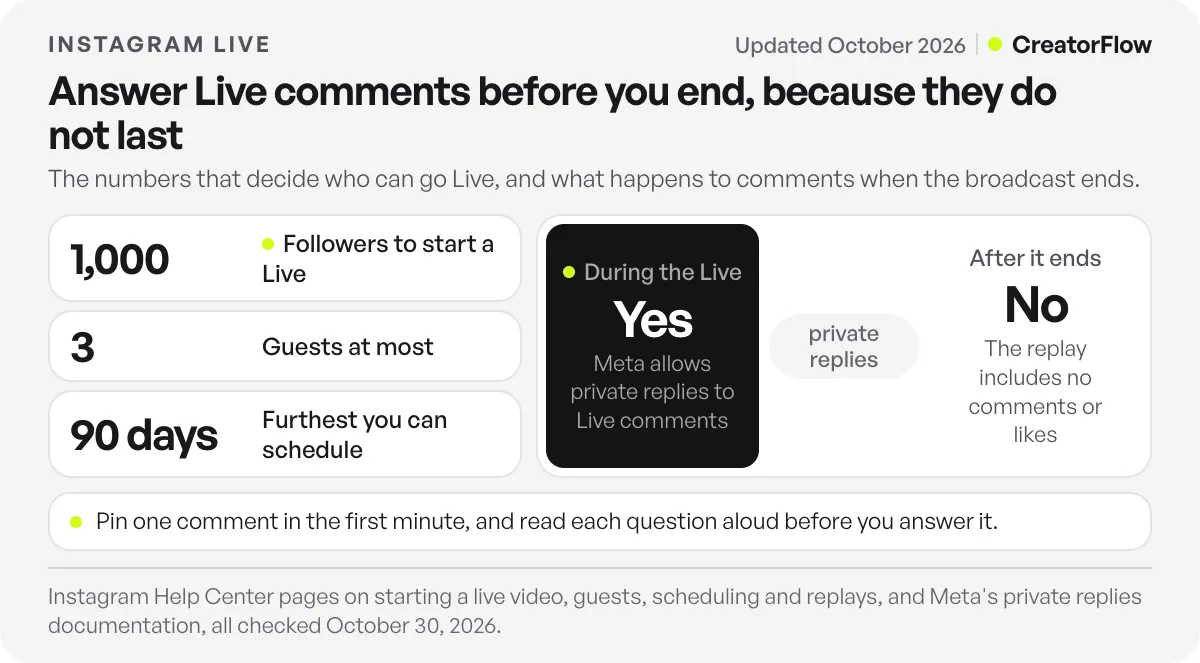
Three pages set those limits. Instagram’s Live steps say only the video is saved, and not comments, likes or viewers. Its page on sharing a replay says replays will not include likes or comments from the original Live. Meta’s private replies documentation gives posts and Reels 7 days, then says that for Live, replies can be sent only during the broadcast (checked October 2026).
| What you see | What to do | Instagram control |
|---|---|---|
| The same question again and again | Pin the answer and say it out loud | Pin comment |
| A real question for you | Read it aloud, then answer | None needed |
| Spam or abuse | Your moderator removes the account or turns off its comments | Moderator, keyword filters |
| Requests to join | Turn them off if you want no guests | Turn off requests to go live |
Pin one comment in the first minute. Write the one thing people will ask, such as your topic or where to find the link. Then tap the comment and tap Pin comment.
Read each question aloud. The replay is the reason. Someone who watches later hears your answer but cannot see the question.
Give one person the moderator job. You can assign one moderator from Options. That person must be watching the Live and must accept. A moderator can report a comment, remove an account from the Live, or turn off commenting for one account. Your keyword filters also apply to Live comments, so set them up first with our guide to hiding Instagram comments.
Add a link if you have the option. Instagram’s external link page says you can add one link, shown at the bottom of the screen to all viewers. A website link keeps the video playing in the background. The page says the feature is available to a limited number of accounts in select markets, including the United States, so you may not see it.
Send links by DM when each viewer needs their own. A viewer can comment a keyword during the Live, and a tool connected to Meta’s API can send that viewer a DM. Meta allows this only during the broadcast, and only one message until the person replies. Put everything in that first message, and say the keyword more than once because people join late. Setup and message templates are in our Instagram Live DM automation guide. If you plan to sell, read our guide to selling on Instagram Live as well.
What happens after you end an Instagram Live?
When you end a Live, the end screen lets you share it as a reel or download it. You can also share it later from Live Archive, which keeps Live videos for 30 days. You cannot edit or trim the replay before you share it, and its viewer count starts again.
Tapping Share as reel opens the reels publish screen, so you write a caption there. Because the replay has no comments, the caption is the place to repeat what viewers asked for most.
Comments on the reel start fresh, and this gives you a second way to deliver what you promised. CreatorFlow’s comment-to-DM automation replies when people comment a keyword on posts and Reels, with up to 20 keywords per automation. Meta allows a private reply within 7 days on these formats. Add the keyword to the caption, and test it once from a second account before you rely on it. The Free plan includes comment-to-DM.
FAQ
Why can’t I go live on Instagram?
Your account is probably private or below 1,000 followers, which are the two rules Instagram states first. Other causes on the Help Center are a Teen Account with the feature off, a past post removed for going against the Community Standards, or a newly created account. Check your account status in the app to see any restrictions.
Can I test a Live before anyone sees it?
Yes, from a computer. In Live Producer, choose Practice as your audience, and the Live will not start for anyone. Instagram lists Practice in its computer steps. Its phone steps do not mention it.
Does an Instagram Live save automatically?
Only if automatic saving is on. Before you start, tap Settings on the Live camera screen, then Live, and check the toggle that saves Live videos to your archive. Instagram’s channel page says Live videos stay in the archive for 30 days. Download anything you want to keep longer.
Can people see that I am watching their Live?
Yes, they may. Instagram’s viewer page says the host and other viewers may be able to see that you joined. Anyone watching can also see when you like or comment on the video.
Can I go live only for a channel?
Yes, if you are the channel’s admin. Go to the channel, tap Add, then tap Live. Only channel members can watch, according to Instagram’s channel page. The same rule applies here, so you need a public account with 1,000 or more followers.
Can I pay to show my Live to more people?
Yes, with Instagram’s Boost option on the Live screen. Instagram’s Boost page says the ad can appear in Feed, Stories and Reels, and it runs only while you are streaming. Instagram recommends scheduling it at least two hours before you go live. In most regions, Apple may take a 30% service fee when you add funds in the iOS app.
Sources and checks
Checked on October 30, 2026: Instagram’s Help Center pages on Live, starting a live video, scheduling, guests, moderators, external links, replays, channels and Boost, plus Meta’s private replies documentation. Older sources carry their own dates: TechCrunch (October 2020 and August 2025), Instagram’s Live Producer guide (November 2022) and Social Media Today (December 2023). No Instagram page we read states a current maximum length, so 4 hours is the last announced figure we found.