Fill your event or webinar from Instagram
In this lesson you will
- Plan three weeks of event posts, each with one keyword
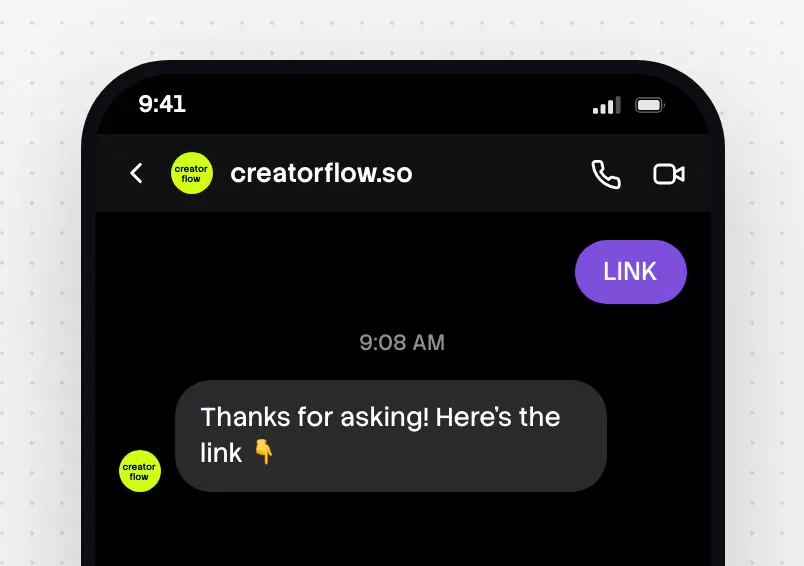
- Send the sign-up link by DM the moment someone asks
- Count sign-ups by post and send late people to the replay
To fill your event or webinar from Instagram, give each promo post one keyword, such as WEBINAR or TICKETS. The keyword sends the sign-up link by DM. Start three weeks before, and let your ticket or webinar tool email the reminders.
The campaign at a glance
A coach fills a free webinar. A food market sells Saturday tickets. The plan is the same.
| Part | Your event |
|---|---|
| Goal | Sign-ups for one date, and a list for the next one |
| Best for | Webinars, Instagram Lives, workshops, classes, markets, concerts |
| Length | 21 days before the event to 1 day after |
| Posts | Announcement, partner post, schedule, countdown Stories, preview Reel, recap |
| Keywords | WEBINAR or TICKETS, then SCHEDULE, REPLAY and NEXT, one per post |
| What the DM sends | The sign-up or ticket page, with the date, time and time zone |
| CreatorFlow features | Comment-to-DM, Story replies, keyword DM replies, Email Gate, link tracking |
| Plan | Free sends the link. Email Gate, Rewind and link tracking need Pro or Growth |
Day by day
Every step counts from the event date.
- 1
21 days before: announce it
Build the TICKETS or WEBINAR automation on Next post or reel. Then post a Reel with what, where and when, and add an Instagram reminder.
- 2
14 days before: reach a partner's followers
Post with a speaker, artist or venue, using the same keyword. Test the DM once it is live.
- 3
10 days before: post the schedule
Post a carousel of the day, hour by hour. Give it its own keyword, SCHEDULE, and its own link.
- 4
7 days before: start the countdown
Add a countdown Story that asks for TICKETS. For a Live, schedule it in Instagram and share it, so people set a reminder.
- 5
3 days before: show what it feels like
Post a Reel of the room or last year's crowd. Ask people before you show their faces.
- 6
1 day before: answer the last questions
Post a Story with the time, parking and what to bring. Replies get the event page.
- 7
Event day: ask for a DM in the Live
CreatorFlow does not answer Live comments. Say "DM me GUIDE", pin it as a comment and repeat it for late viewers. A keyword DM reply sends the link.
- 8
1 day after: the replay and the next date
Change the WEBINAR DM to the replay, or pause it. Share the Live as a Reel with REPLAY in the caption.
Instagram event and webinar posts to copy
Copy and change
Event DMs to copy
Copy and change
RSVP is for a free event with no sign-up form. Email Gate collects the email first.
Mistakes
- Planning reminder DMs
CreatorFlow cannot message people later. Turn on the reminder emails in your webinar or ticket tool.
- One keyword for every event
An old link then reaches new people. Use one keyword and one link for each event.
- A time with no time zone
19:00 means three times to people in the US, the UK and Europe. Write the zone in every post and DM.
- A ticket price without the fees
Rules in the US and the UK ask for the full price, with the fees people must pay. Write the full price, or show it only on the ticket page.
After the campaign
- Compare keyword comments, Link Clicks (Pro and Growth) and sign-ups for each post
- Read the gaps. Many comments and few clicks means the DM needs a clearer reason. Few sign-ups means the form is too long for a phone
- Change or pause every event DM the day after. Keep NEXT running on the recap
In CreatorFlow
Set it up in CreatorFlow
Each promo post gets its own automation.
- 1
Build one automation per post
Before each post, pick Next post or reel in Step 1. Type the keyword, its plural and the event name, such as WEBINAR, WEBINARS and MASTERCLASS.
- 2
Decide on the email step
Skip Step 3 when the sign-up form asks for the email. For a free event with no form, choose Email Gate on Pro or Growth.
- 3
Write the DM with a tracked link
Write the date, the time and the zone. Press + Add Link and add the sign-up page, with a different tracked link for each post.
- 4
Add the Story and Live keywords
Set one Story automation on your next Story, with the event page. Build a keyword DM reply for the Live word.
- 5
Start and test each one
Press Start Automation. After each post or Story, comment, reply or send the word from a second account.
Practice
Your task
- 1
Pick the event date and the keyword for your announcement post.
- 2
Build the automation with your sign-up link and test it from a second account.
- 3
Post the announcement with the keyword in the first caption line.
You are done when your test account gets the DM and the button opens your sign-up page.
Open CreatorFlowKey points
- Every promo post gets one keyword and its own sign-up link.
- Reminders come by email from your ticket or webinar tool.
- The day after, the DM sends the replay or the next date.
Questions
Can CreatorFlow send event reminders by DM?
No. CreatorFlow sends one DM when someone comments, replies to a Story or sends a keyword. It cannot message them later. Your ticket or webinar tool has their email and sends the reminders.
Does comment-to-DM work on Instagram Live comments?
CreatorFlow answers comments on posts and Reels. During a Live, ask viewers to send you a keyword by DM. After the Live, share it as a Reel with a keyword in the caption.
How do I promote two session times?
One post has one active automation. Give each time its own post, keyword and link. Or send one link to a page with both times.
Go deeper: How to promote an event on Instagram, Webinar sign-ups by Instagram DM, Instagram Live, step by step, Turn Instagram DM questions into sales.
Last updated November 4, 2026